Configuring and operating the dynamos, faceplate displays, and detail displays for function blocks is very similar to using these items for the library modules. The differences are transparent, for the most part. For example, with modules, the name of the faceplate and detail display is held as a property of the module. With function blocks, the name of the faceplate or detail display is part of the script that runs when the icon to invoke the display is selected by the operator. The noticeable difference between function block and module displays is the alarm information that is shown. Since alarm parameters are associated with the module and not the function block, there is no alarm information shown in the function block pop-up displays. However, there is direct access from the function block faceplate to the module faceplate defined as a property of the module. As a default, a faceplate called MOD_FP is defined for a module that is created using the option. This module faceplate contains an alarm list that shows the active or unacknowledged alarms in the module.
Suppose you have created a new module called FI101, initially having no function blocks on its function block diagram. This module is created to contain, for example, the analog monitors in Area 33. Analog Input function blocks are added to this module for each input to be monitored. The usage name of each AI block is AI1 or AI2. An alarm parameter is created for each AI block in the module (for example, a high alarm for FI101 called FI101HI).
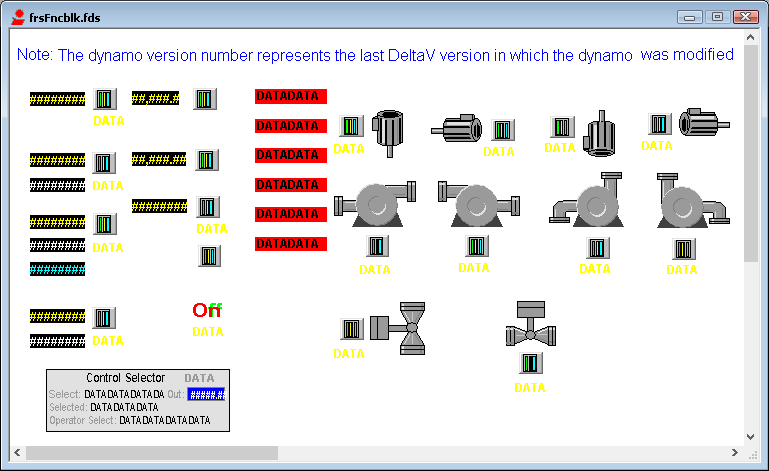
Using DeltaV Operate configure mode, you can place a dynamo corresponding to each AI block in FI101 on a process display. The following figure shows the frsFncblk dynamo set. It looks similar to the frsModules dynamo set used with modules created from the DeltaV module templates.
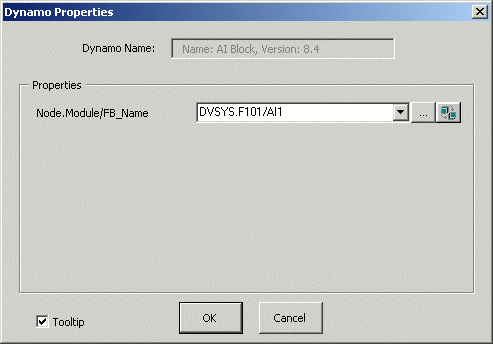
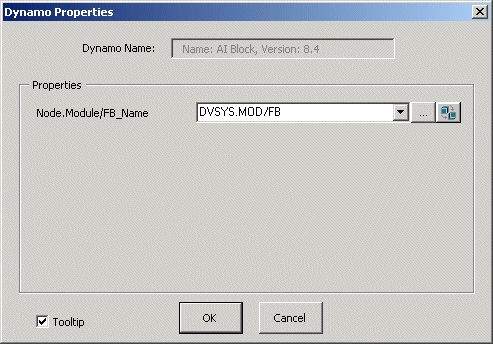
When the dynamo called AI BLOCK is dragged and dropped on the process display, the dialog in the following figure appears. As with all the function block dynamos, it is necessary to enter the module tag and function block usage name (separated by a "/") in the edit box on the dynamo.
The following figure shows the dialog after it has been edited for the AI block AI1 in module FI101. Additional dynamos would need to be dragged onto the process display for AI2 and the other AI blocks in the module.