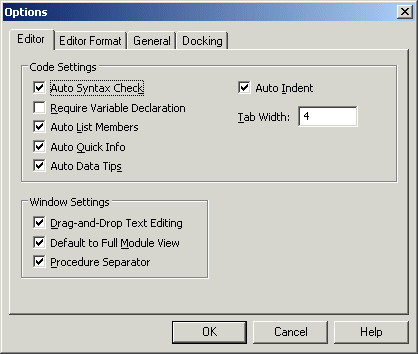
You can configure the VBA Editor with a number of different options. These options are set in the Options dialog box. The Options dialog box displays when you select Options from the Tool menu. There are options on four different tabbed pages. To choose a set of options to work with, click the appropriate tab. When you have made all of the required changes, click OK.
Tips for Configuring VBA Options
This section describes two specific items or settings that we recommend you take advantage of when configuring your VBA options.
Require Variable Declaration
Although it is not required, you should use the Option Explicit statement in the Declarations section of a module to require variable declaration. The Option Explicit statement forces you to use variables that have already been declared as a certain type. Using the Option Explicit statement will help you avoid a common programming error and will shorten your debugging time.
To configure VBA to automatically add the Option Explicit statement to a new project:
-
Select Options from the Tool menu.
-
Select the Editor tab.
-
Select the Require Variable Declaration check box.
-
Click OK to activate this new option for all modules.
From this point on, when you create a new module, the Option Explicit statement will be added automatically. To learn more about setting VBA Editor options, click the Help button in the Options dialog box.
Clear the Compile On Demand Check Box
The Compile On Demand option, located on the General tab of the Options dialog box, determines whether a project is fully compiled before it starts, or whether code is compiled as needed, allowing the application to start sooner. We recommend that you clear this check box so you can more easily debug errors in your code.
 WARNING!
Do not enable the Notify Before State Loss option, located on the General tab of the Options dialog box. Doing so may cause an error or interruption in DeltaV Operate.
Configuring VBA Project Options
In the previous section, you looked at the options available for configuring VBA. In this section, you will look at options specific to your project. These options are set in the VBA Project—Project Properties dialog box. You can display this dialog by selecting VBA Project Properties from the Tools menu, or when you right-click the project in the Project Explorer and select Project Properties. The options appear on two different pages. To choose a set of options, click the appropriate tab. When you have made all of the appropriate changes, click OK.
One option that you can enable for your project is to specify a Help file that you may have built for your project and the context ID that enables it to run with your project. For more information on how to create a picture-specific Help file, see Creating Picture-Specific Help Files.
For more information on the other project properties that are available, refer to the sections Visual Basic User Interface Help and Visual Basic How-To Topics in the Visual Basic for Applications Help file, or search for the Index keyword "properties" and select "project".