The VBA editor includes a number of extremely useful features to help you write code accurately and quickly. These features try to anticipate what you are writing in the code, and they prompt you with possible data types, built-in procedure templates, member functions, and more, as you type.
Visual Basic makes writing code easy, with features that can automatically fill in statements, properties, and arguments for you. As you enter code, the editor displays lists of appropriate choices, statement or function prototypes, or values. Options for enabling or disabling these and other code settings are available on the Editor tab of the Options dialog, which you can access by selecting Options from the Tools menu.
Auto List Members
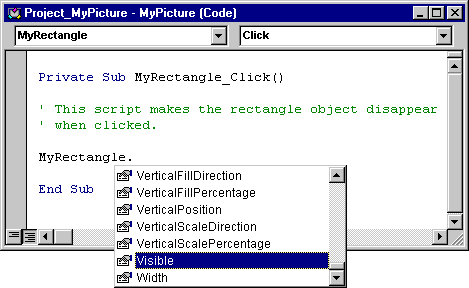
When you enter the name of a control in your code, the Auto List Members feature presents a drop-down list of properties available for that control. Type in the first few letters of the property name and the name will be selected from the list; the <TAB> key will complete the typing for you. This option is also helpful when you aren't sure which properties are available for a given control.
Auto Quick Info
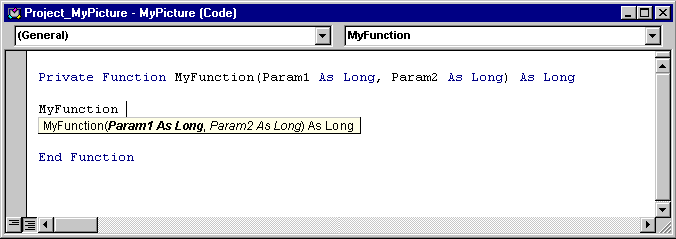
The Auto Quick Info feature displays the syntax for statements and functions. When you enter the name of a valid Visual Basic statement or function the syntax is shown immediately below the current line, with the first argument in bold. After you enter the first argument value, the second argument appears in bold.