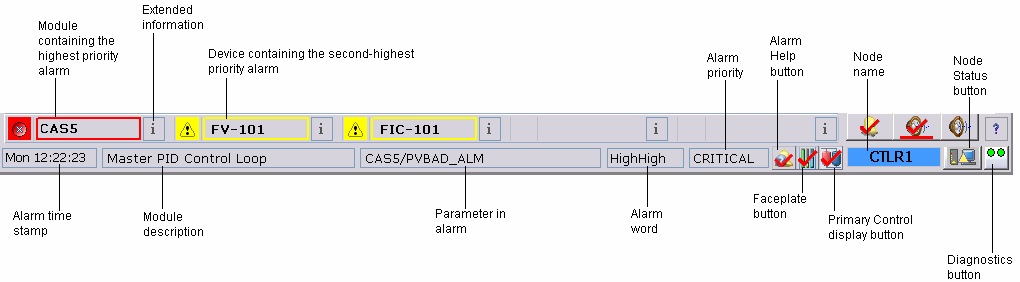
The Alarm Banner is in the lower section of the screen in DeltaV Operate. It provides buttons for the five or six highest priority alarms monitored by this workstation for the current DeltaV user. Multiple (from two to four) monitor workstations display the ten most important alarms. The Alarm Banner enables the operator to focus on the most important alarms first. Any alarms of a priority (typically lower priority alarms) not shown in the alarm banner do not sound the horn on that workstation.
The buttons show the name of the modules, units, and devices in alarm. The banner can show all active process alarms in a module, or you can configure the alarm priorities so that only the most important alarm for a module or unit occupies a position in the alarm banner. Maintenance workstations are designed for managing fieldbus devices and so show only device alarms in the alarm banner.
Hardware COMM_ALM alarms are not displayed in the alarm banner as part of the highest priority alarms. COMM_ALM alarms are displayed in priority order as part of the hardware alarms in the Alarm Summary control on the alarmban_HAC alarm banners.
The operator can access the display needed to correct the alarm condition by clicking the alarm in the Alarm Banner. If you enable the Primary Control button, clicking an alarm button (for example, CAS5) from the operator application opens the primary control display. If you enable the Faceplate button, clicking an alarm button from the operator application opens the faceplate assigned to the module. The control display is a property of the module or fieldbus device. To define displays for a module, use the Explorer or Control Studio. To define displays for a device, us the Device Properties in Explorer.
For device alarms, the alarm banner shows alarms with the Warning priority. Each device alarm may be triggered by one of several device conditions. The banner shows one active alarm even if more than one device condition is causing the alarm. For example, if two device conditions are causing a Maintenance alarm, the banner only shows one Maintenance device alarm. For HART device alarms a message indicates that multiple conditions are active.
The operator can also view additional information for each alarm, which includes the associated alarm's timestamp, description, parameter name, alarm word, and alarm priority. In DeltaV Operate, click the Extended Information button next to each alarm to view the alarm information; in DeltaV Live, hover the mouse on an alarm button to view the alarm information.
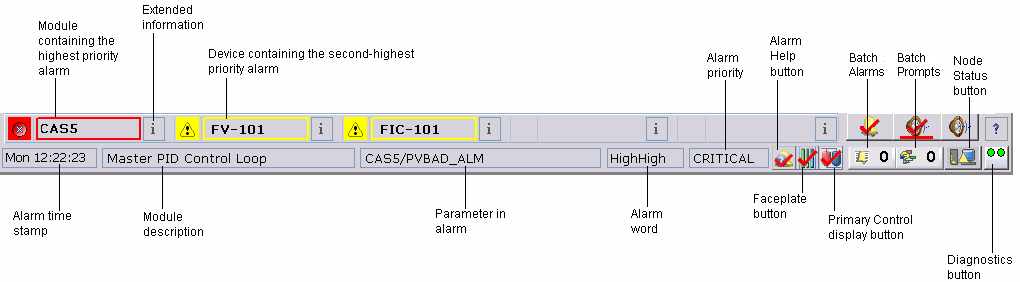


The Batch Alarms and Batch Prompts icons are visible when a Batch Executive has been selected using the Batch OI Configuration Tool.
The Node Status is visible only on non-HAC alarm banners.