The Alarm Summary object is an ActiveX
control used to display alarms in pictures and to enable operators to respond
to alarms. In configuration mode, an Alarm Summary object can be inserted into
a picture by clicking the Alarm Summary object button
 . (Default locations for
this button are on the Advanced toolbar and in the Toolbox.) When first
inserted into a picture, the Alarm Summary object looks like the following:
. (Default locations for
this button are on the Advanced toolbar and in the Toolbox.) When first
inserted into a picture, the Alarm Summary object looks like the following:
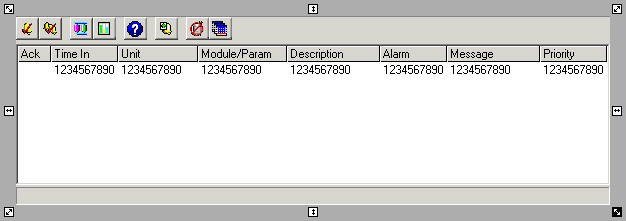
Double-clicking the toolbar (but not on a button) opens the Customize Toolbar dialog. From this dialog you can add or remove buttons from the alarm summary object.
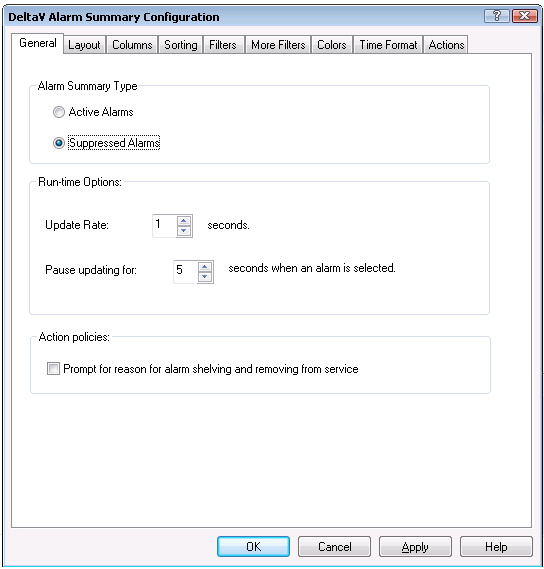
Double-clicking body of the Alarm Summary object opens an multi-tabbed dialog box that lets you define the desired layout, column order, sorting and filtering options, context menu actions, and so on. (You may need to double-click twice to drill down to the right level to open the dialog box.) The first page of the configuration dialog box is shown below.
In the Pictures folder in the DeltaV Operate system tree, there are predefined pictures that are based on the Alarm Summary object. They are the Alarm Summary, Alarm Filter, Alarm List, Alarm Suppress, HWAlarmSum, and SISAlarmList pictures. These pictures are similar in appearance, but are configured using different settings. The column headings are different, the toolbar buttons are different, and so on.
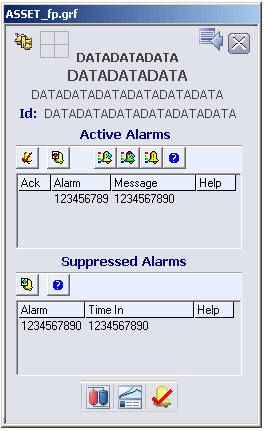
In addition, many pictures included with DeltaV software, such as faceplates, have one or more configured alarm summary objects. The columns that appear and their order may be different depending on the faceplate. For example, the faceplate picture ASSET_FP (in the folder) has two alarm summary objects; one is configured with four columns for active alarms and one is configured with three columns for suppressed alarms.
Up to 17 Alarm Summary objects can be active at the same time in the DeltaV Operate run-time environment. This limit includes full-size pictures such as the Alarm Filter, Alarm List, Alarm Suppress, and Alarm Summary pictures, as well as smaller alarm summary objects on faceplates or other pictures. Having more than 17 active Alarm Summary objects can result in some of them being unable to receive alarm information.
Configuring the Alarm Summary Object
Suppressed alarms include either shelved, out of service or both.
Select from the following list to learn more about configuring the Alarm Summary object.
Interacting with Alarm Summaries at Run Time
While in the run-time environment you can view and test an Alarm Summary object's configuration. For example, depending on where the alarm summary object appears you can:
-
Scroll the alarm list vertically and horizontally to see all information about all alarms.
-
Acknowledge the currently selected alarm.
-
Acknowledge or delete all alarms that match the current filter.
-
Change the Alarm Summary object's filter or sort configuration.
-
Change and restore the Alarm Summary object's default settings.
-
Temporarily disable the alarm refresh rate and instruct the Alarm Summary object to stop updating the spreadsheet.
-
View and modify alarm help (depending on licensing and user privileges).
-
Save alarm information to a file (if you added an Export Alarm Summary to Xml button to the object's toolbar).