Be sure that you have read about alarm management for the Operator Keyboard. The person responsible for configuration configures modules and module alarms and assigns modules to specific units based on logical groupings of plant equipment or processes. This person also creates a unique Primary Control Display for each module and unit, assigns each unit to the unit alarm button in DeltaV Operate, and uses this and other dynamos to create a display called the Operator Keyboard screen from which screen navigation and operation is managed. When a module goes into alarm, the associated button flashes on the Operator Keyboard screen and alerts the operator. In this way, Operator Keyboard software provides operators rapid access to modules in alarm.
-
Open DeltaV Explorer ().
-
Under Control Strategies, select an area, click the right mouse button, and click .
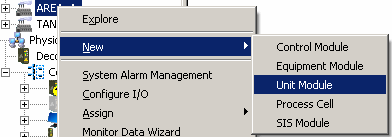
-
Configure the unit module in the New dialog box. Use the New dialog box's context sensitive help or the DeltaV Explorer online help for help on configuring the unit modules.
-
To create modules under the unit module, select the unit module, click the right mouse button, and select New Module.
-
Create the new module and click OK.
-
To configure a module's properties, including its Primary Control Display, right click the module and select Properties.
-
Continue to add and configure modules as required for your process.
A module can belong to only one unit.
To configure module alarms
Configure module alarms in DeltaV Control Studio
-
Open Control Studio ().
-
Right click in the Alarm View area and select Add to add an alarm to a module.
Refer to the Control Studio online help and to Books Online for more information on adding and using alarms.