The following topic describes how to write a custom VBA program that accesses historical data read from the DeltaV Continuous Historian database using DeltaV Reporter.
Application scenario
Every 30 minutes during a shift, the operator is required to check a simple pressure gauge on the side of an aging vessel. The indicator on the gauge displays green when pressure is at a safe level, amber when pressure is approaching dangerous levels, or red when the pressure has exceeded a safe level. To simplify this process and reduce the likelihood of error, you can create a VBA program in which the times of the checks are predefined and the operator is forced to choose a valid state for the gauge.
Set up an Excel workbook template to collect data with DeltaV Reporter
To set up DeltaV Reporter to collect data for the pressure gauge, start Microsoft Excel, and then complete the following steps:
- In cell A1, enter the formula =TODAY().
- Select cells A3 thru A18. Open the Format Cells dialog, and then set dd mmm yyyy hh:mm as a Custom Number format for the cells.
- Enter the following cell values and formulas:
- Select cells G1 thru G3,
and then specify GaugeValues as their range name.
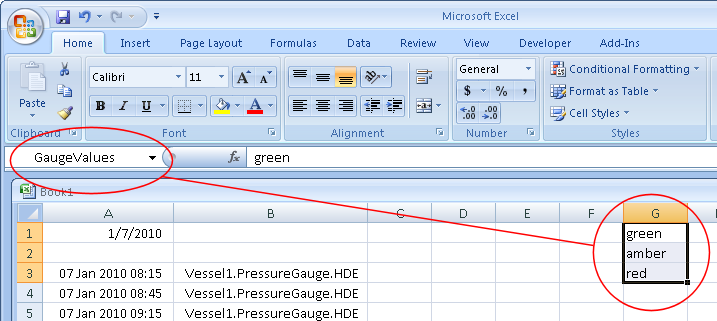
- Select cells C3 thru C18,
open the
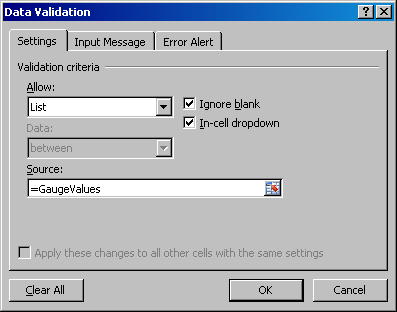
Data Validation dialog, and then specify the
following
Validation criteria settings:
- Save the Excel workbook as PressureGauge.xltm, an Excel Macro-Enabled Template.
Customize the Excel template with VBA
To extend the functionality of the PressureGauge.xltm template by customizing it with VBA, complete the following steps:
- On the Developer tab, in the Code group, click Visual Basic to start the Visual Basic editor, and then click Sheet1 in the Project - VBAProject window.
- Enter the following Sub
procedures to the PressureGauge.xltm - Sheet1 (Code) window.
Sub WriteData()
        MsgBox "Data Written"
End Sub
Sub ClearForm() MsgBox "Form Cleared" End Sub - To return to the worksheet, click .
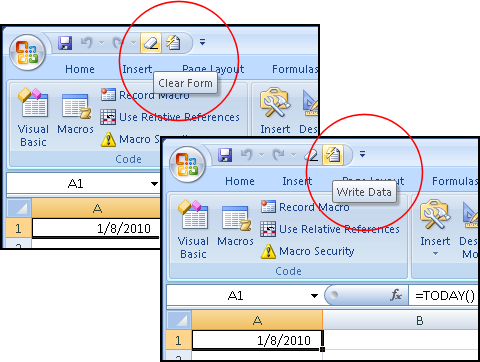
- To add macro buttons
(named Clear Form and Write Data, for example) for each of the Sub procedures,
open the
Customize window in
Excel Options, and then select
Macros from the
Choose commands from list.
- Start the Visual Basic
editor again and add code to the WriteData and ClearForm Sub procedures to
perform the following tasks:
Macro Sub procedure
Task
WriteData
Check that the time is after 15:45. (If the time is any earlier, the table cannot be completely filled out.)
Access the Vessel1.PressureGauge.HDE object.
Connect to the DeltaV Continuous Historian server.
Use the WriteSamples method on the Connection object to write the data to the cells in the range A3 thru E18.
Check for success.
For example, if the WriteSamples method succeeds, it will return 16 to indicate that 16 samples were written.
Iterate over any errors and display their descriptions.
ClearForm
Prompt for confirmation, so the operator does not inadvertently lose any data entered manually.
Clear the contents of each cell in the range C3 thru C18.
Set the value of each cell in the range D3 thru D18 to 128.
Set the value of each cell in the range E3 thru E18 to TRUE.
- Save the PressureGauge.xltm macro-enabled Excel template.
Using the customized Excel template
An operator can use the PressureGauge.xltm macro-enabled Excel template to procedurally enforce choosing a valid state for the gauge. At the start of a shift, the operator would first create a new Excel workbook based on the PressureGauge.xltm Excel template. As the shift progresses, the operator periodically enters samples into the worksheet. At the end of the shift, the operator clicks the Write Data button to store the data in the DeltaV Continuous Historian database.
If the operator clicks the Write Data button before the end of the shift, the macro prevents any action or data storage from occurring. After the operator clicks the Write Data button once, clicking it again fails, because any attempt to write duplicate samples with an identical time stamp for the same tag are prevented.