It is possible to use models that were created in other applications in DeltaV PredictPro. This procedure explains how to use externally created models in PredictPro.
- Create the MPCPro or MPCPlus configuration in DeltaV Control Studio. Download it and assign it to a node.
- Open the PredictPro application and connect to the function block.
- Select .
- Click
to create the header file. (By default the
header file is created in
DVData\PredictPro\ModelName\.)
Continue by completing the following steps to create a model template for each step response:
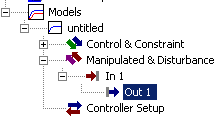
- Expand the Manipulated &
Disturbance folder under the model in the tree view in PredictPro. The
following image shows the Manipulated & Disturbance folder expanded and one
of the outputs (Out 1) selected.
- Select any output.
- For each selected output:
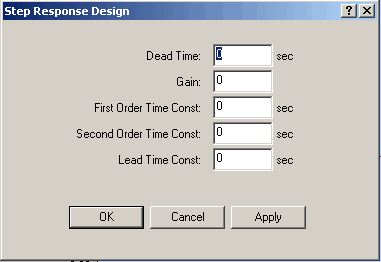
Click the
Design Resp button on the PredictPro interface,
and then click
OK to accept all the defaults in the
Step Response Design dialog.
- Click Save on the PredictPro interface to save the step response.
- Repeat this procedure for every output within the expanded Input folder to develop a template for a complete model.
Now, use Microsoft Excel and format and edit the external file according to the PredictPro Inputs vs. Output.dat file template. Be sure that the formatted external file is in the form of step responses with 120 coefficients and that the scan period in the imported model is the same as that in the PredictPro application.
Replace the step responses in the PredictPro generated Input vs. Output.dat file with the step responses from the external file. Repeat the procedure for every Input vs Output template file to get a complete model.