The MPC controller minimizes future control errors and control moves. The control calculations assume that your process response is reasonably linear over its normal operating range. If the process model has been accurately identified during testing, the default controller settings used in controller generation should provide stable operation and acceptable performance.
If you would like a faster or slower control response, select the Expert option. This allows you to independently create the model and generate the controller. After the model is created, you can make adjustments to it before it is used in controller generation. Also, you can examine and modify the default parameters that are used in controller generation to meet your specific application requirements.
When developing a typical MPC application, keep in mind that the default settings for MPC controller generation will provide a good response for most applications. Also, make sure that you apply setpoint trajectory (using the setpoint filter) if you observe an oscillatory response.
The following sections provide detailed information about procedures that will assist you in achieving the level of control performance you need for your application:
Reviewing the Process Model
After you have used DeltaV Predict to identify a model of your process, review the model to ensure that it reflects your knowledge of the process. It is recommended that you include the following steps in your review:
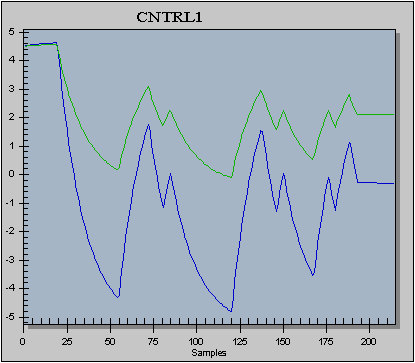
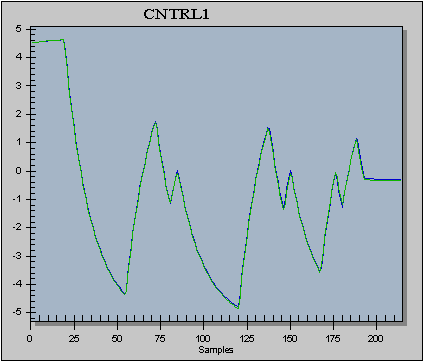
- Inspect validation errors for all process outputs. Select Verify Model and observe the error between the calculated output and the actual output for a selected data set that represents normal operation. If there is a large error, you might need to examine the associated step response in more detail. Refer to the figure entitled Model Verification with Incorrect Process Gain. This figure shows model verification where the model gain is approximately two times smaller than true process gain. Notice that this error in model gain results in much smaller changes in predicted process output (shown in green) and a high average squared error (2.93 percent per scan). Also, refer to the figure entitled Verification with Correct Model. This figure shows the same validation plot as the previous figure but with an acceptable error (0.56 percent per scan) and a model that accurately reflects the process (that is, the model gain is approximately 1 percent in error).
- Inspect every step response. Verify that the gain sign is correct and that the gain value is in the range you would expect based on your knowledge of the process. Select the FIR check box and compare the ARX and FIR models over the initial part of the response curve. Typically, if the ARX and FIR models match, the process model is accurate. If both of the ARX and FIR curves are smooth but show a ten percent or more difference in process gain, it is recommended that you take advantage of the design feature and correct the process gain to place the curve in the middle of the FIR and ARX responses. Refer to the figure entitled FIR and ARX for Poor Model. In this figure, FIR and ARX differ from each other a great deal. Such model inaccuracy might have occurred because the deadtime was close to 60 scans (the maximum FIR horizon), and FIR produced a poor result. Another possible reason could be that the deadtime identified by FIR was too large, causing an inverse gain for ARX. Having the same data but a larger time to steady state often improves such a model (for example, the figure entitled ARX and FIR for Good Model). After the time to steady state was doubled in the latter figure, the FIR and ARX matched acceptably. As previously stated, the deadtime was too large in the former figure (50 seconds, which is close to the maximum FIR horizon of 60 scans). The scan period is doubled in the latter figure (ARX and FIR for Good Model). Also, its deadtime accounts for only 25 scans and was properly identified.
- Make minor corrections in process dynamics. Noisy data may introduce error in the process model identified by DeltaV Predict. Frequently, noise is reflected in a step response that is not smooth in shape. In such situations, it is recommended that you use DeltaV Predict's graphical or numerical step response design tools to smooth out the step response.
- Correct step responses that deviate from expected ranges. Noisy data, insufficient excitation, or insufficient test time may produce a process model that is not satisfactory for control. However, if plant conditions do not allow for a better test, consider correcting the model based on your knowledge of the process, information gathered by observing trends of the measurement, and the process simulations. Typically, you can either select Design Response, and then enter step response parameters, or use the graphical design option. Make sure that you clean up any residual step responses with gains that are 10 times smaller than the highest gains with irregular shapes.
- Inspect validation after making model changes. If you have modified the model identified by DeltaV Predict, select Verify Model and observe how well the calculated and actual outputs match in a selected set of data.
Setting the Parameters Used in Controller Generation
The MPC controller is generated from the process model and controller design parameters. You can use the Penalty on Move (PM) and and Penalty on Error (PE) parameters to adjust the robustness of control and the speed of response, respectively. You can adjust these parameters from the dialog that appears after you select Generate Controller.
The following topics provide detailed information about the PM and PE parameters:
Control Robustness
Sensitivity of control to changes in process dynamics is determined by the controller robustness. The parameter used in controller generation that most impacts robustness is the Penalty on Move (PM) parameter. The PM controls how much the MPC controller is penalized for change in the manipulated output (MV). The Penalty on Move parameter is defined independently for every MV. Large PM values result in a slow controller with a wide stability margin. With such settings, the control is relatively insensitive to change in either the process or the model errors. Small PM values result in a fast controller with a narrow stability margin. When the model used in generating the control accurately reflects the process gain and dynamics, changing the PM value does not affect the controller performance significantly. However, a difference in the controller performance might occur if the model does not match the real process. To ensure a stable and responsive MPC operation when the model is within ±20 percent accuracy, the following setting for the PM value is recommended.
PMi = 3(1 + DTi/20 + Gi * DTi/40)
where:
DTi is the deadtime/module execution period (in MPC scans) for Mvi -> Cvi relation
Gi - gain (no units) for Mvi -> Cvi relation
When you select Generate Control, the values of the PM parameters shown in the parameter dialog were calculated as described above. In most cases, the calculated settings for the PM give good control, even if the model error is greater than ±20 percent. It is recommended that you use the default settings. Only change these settings if the online operation of MPC does not meet your control objectives.
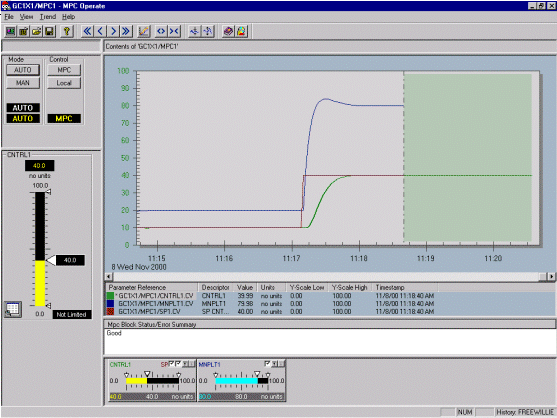
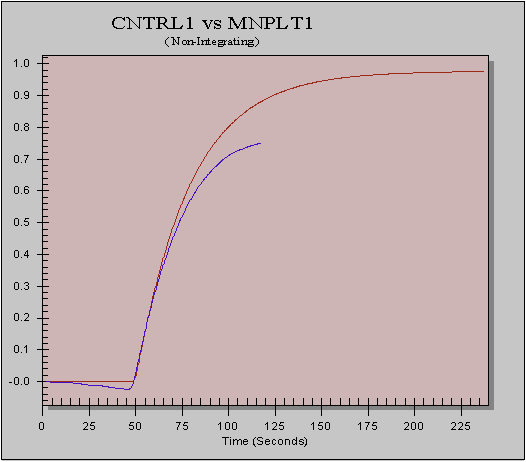
The above figure shows an example of a setpoint step response with a good model match. The PE equals 1, and the PM equals 4 (default).
Control Sensitivity
To meet your application requirements, you can give higher priority to one Controlled Variable (CV). The Penalty on Error (PE) factor allows more importance to be placed on a specific CV. The default value for the PE is 1 for all CVs; this value should provide good control for most applications. You can change the PE from this default value to prioritize control action. However, you should not use it to change overall control performance. When you want more sensitive control for a specific CV, set the associated PE to a value greater than 1. If you want to relax control, set the associated PE to a value less than 1. Typically, it is recommended that you only change the PE after adjusting the MPC controller using the Penalty on Move (PM) and testing in simulation. If the control strategy clearly indicates that one of the controlled variables should be of lower priority, you can set the associated PE to a value of 0.8 initially. After testing in simulation, you can adjust the PE value over a range of 0.5-1.5. Only move outside this range after verifying controller operation on the real process. The primary criterion for adjusting the PE is acceptable variability on a specific controlled parameter.
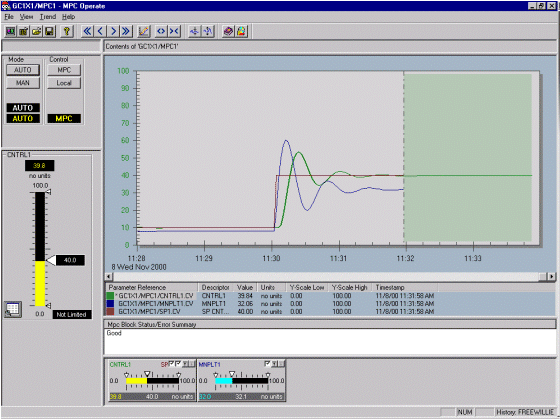
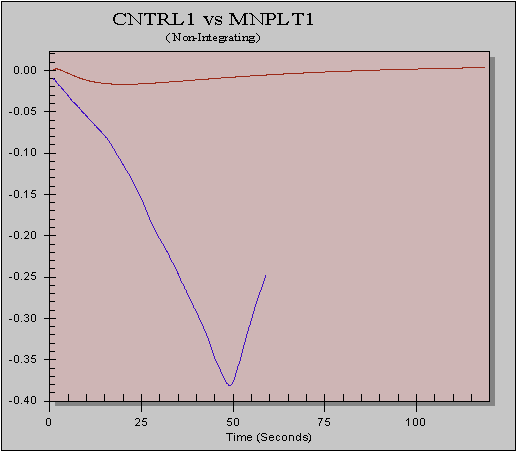
The above figure illustrates a setpoint step response with the same PE and PM as in the previous figure. However, process gain is set at 2.5 times the model gain.
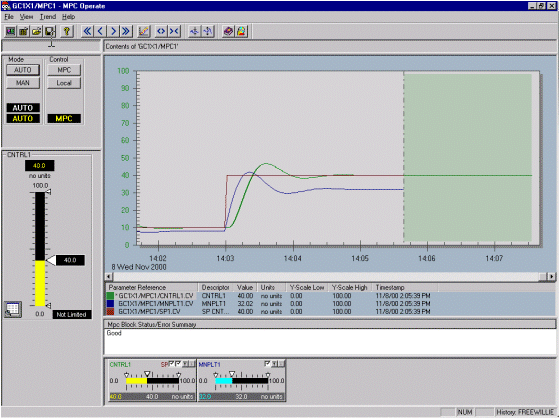
The above figure shows the same process-model mismatch as in the previous figure, except that the PM equals 20 (five times the default setting).
It is recommended that you not change default values of the other parameters in the Generate Control window.
Testing the Response Using Simulation
After controller generation, you can use the Simulate feature of DeltaV Predict to test the control performance. Using this simulation environment, you can observe the control response for setpoint changes, measured and unmeasured disturbance, constraints handling, and optimization. You can adjust the maximum MV move and setpoint trajectory online and test them in this simulation environment. If you make any changes to the PM or the PE, you must generate the controller before you test these changes.Maximum MV Move
From the detail display for each MV, you can specify the maximum limit for changes in the MV. It is recommended that you specify this limit so that control moves are not limited during normal operations. You can do so by setting the limit to the output span of the MV. Responsive control with little or no overshoot should be observed when the defaults parameter values for controller generation have been used. It is recommended that you change the simulated process gain by ±50 percent and observe the response to verify that a satisfactory response is still achieved.
For some processes, you might need to set the maximum MV move based on process equipment limits. After you make these adjustments, you should not observe a significant difference in MPC performance. However, if you notice that the control response has changed, you might consider relaxing the MV move limits or increasing the PM settings.
Setpoint Trajectory
You can modify the setpoint trajectories that are used in the control online. Adjust the associated setpoint filter from the detail display of the MPC Operate interface. Modify the setpoint trajectory through this filter to increase overall controller robustness after controller generation and download. If a specific controlled parameter exhibits an oscillatory response, you can increase the setpoint filter to provide more stable control.
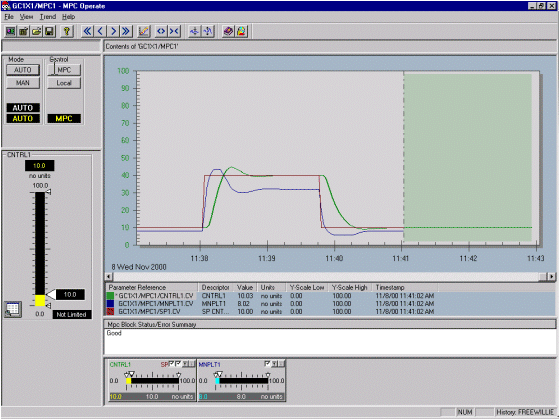
The above figure shows the same process/model mismatch and controller generation settings as in the figure entitled Setpoint Step Response for Model Mismatch. The controller performance is adjusted online by a setpoint filter that equals 120 (prediction horizon or PH) for the first step response and 240 (2 times PH) for the second step response.
It is recommended that you apply the following rules when adjusting the setpoint filter time constant:
- Set the setpoint filter time constant to a value that is one half of the configured Time to Steady State (in seconds). If the control response is still too fast after making this change, increase the filter in the same increment or up to twice the time to steady state.
- Once you are close to the response that you want, make small adjustments until you achieve that response.
- If MPC operation is not improved by changing the setpoint filter, it is recommended that you increase the PM by fifty percent, generate the controller, and then repeat the simulation.
Adjusting the PM and the PE
You can use the DeltaV Predict simulation environment to evaluate the impact of changes in the PM and PE. To do so, you must modifiy these parameters and then generate the control. Then, you can test the new control using the simulation environment provided by DeltaV Predict. Use the following guidelines to adjust these parameters:
- Increase the PM value (in fifty percent increments) for any manipulated variables that are moving more than the acceptable limits.
- Decrease the PM for manipulated variables that are not responsive. It is recommended that they do not go below the default minimum PM values (the PM min = 3).
- Increase or decrease the PE, depending on process control requirements.
Adjusting MPC Once Control Is in Service
After testing the MPC block in the DeltaV Predict simulation environment, you can download the module containing the MPC block to the controller and use it to control the process. The performance should match what you observed when testing the control in this simulation environment. However, if the process model identified by DeltaV Predict does not accurately reflect the process gain and dynamics, the performance may not be the same as seen in simulation. In such cases, you can adjust controller performance using the following rules:
- Adjust the setpoint trajectory using the controlled parameter setpoint filter.
- If the previous step is not successful, adjust the PM (and the PE, if necessary) parameters, test in simulation, and then download the module to use the adjusted PM and PE values.
- When adjusting a controller, it is important to use your understanding of process behavior as well as achievable control objectives.
Adjusting the Modeling Error Filter
For every control scan, MPC validates the process model's output prediction by comparing it to the measurement. Normally, there is some disparity caused by a model mismatch or by unmeasured disturbances. The MPC prediction is corrected to match the current measurement. As a result, the next MV move accounts for the correction; this is in essence MPC feedback action.
Full error correction is beneficial for unmeasured disturbance compensation when the model is good. If the model time constant or a particular dead time mismatch exists, complete prediction compensation to match the measurement could deteriorate the dynamic response. Therefore, a filter is applied with a factor that defines which fraction of the error is compensated at one scan.
The default filter factor value is 0.75. This value works well for the majority of applications. Expert users can adjust the filter factor in the range of 0.4 to1.0. Increasing the filter factor causes better disturbances compensation. Filter factor values close to 1.0 should be avoided for models with a significant dead time mismatch.
The filter factor is a hidden parameter; the path to it is: MODULE/MPC BLOCK/MOD_CORR_FACTOR[#], where # is the CV number. One way to change and preserve this parameter during an upload or download is to use a simple calculation block in the module that writes the parameter to the MPC function block. The calculation expression for one filter factor CV[1] can be expressed as:
'//MPCPRO/MPC-PRO1/MOD_CORR_FACTOR[1]' := 1.0;
OUT1 := '//MPCPRO/MPC-PRO1/MOD_CORR_FACTOR[1]' ;
To minimize calculations, set the block execution to once every 10 or so module scans.