There are certain tasks that you may want to perform at a specified time or interval, or when a change occurs in a database value or in any OPC data server value. For example, you may want to run a Visual Basic® for Applications (VBA) script that generates a report at the end of every shift or replaces the currently-displayed picture when a database point exceeds a certain value. The Scheduler allows you to create, edit, monitor, and run both types of actions as scheduled entries. In the Scheduler, you define the time or event that triggers a scheduled entry, and the action, referred to as an operation, that you want to occur.
DeltaV Operate supplies Script Authoring Experts for common tasks such as replacing a picture. These Experts generate scripts based on the information that you supply to the Expert. You can also write custom scripts for common tasks that do not have Script Authoring Experts. Refer to Writing Scripts for detailed information on writing VBA scripts.
Note You must copy the schedule file (*.EVS) from the ProfessionalPLUS workstation to those Operator Stations that require that schedule.
Overview
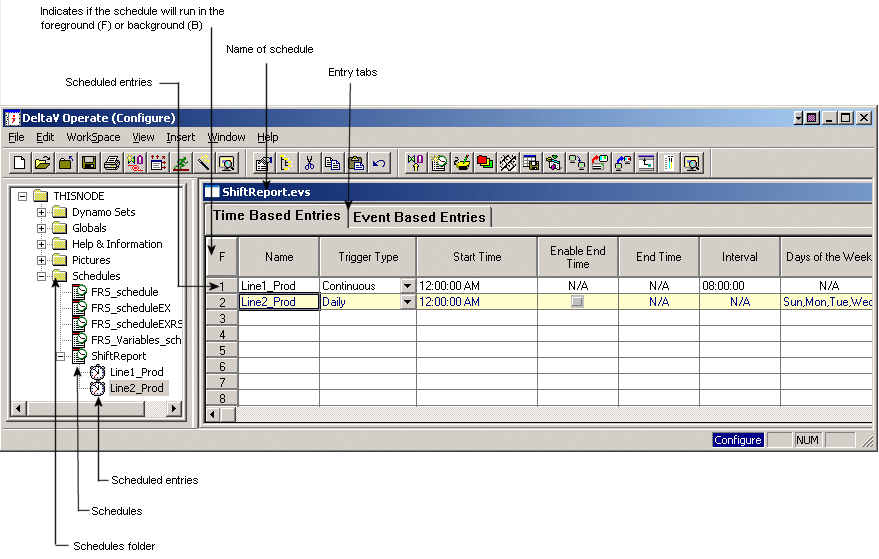
In the configuration environment, schedules are displayed in DeltaV Operate, allowing you to easily create, edit, and start monitoring entries while you work on your project.
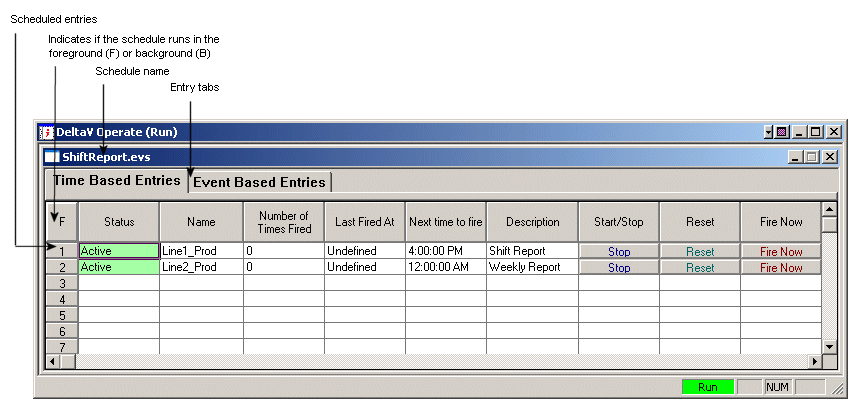
In the run-time environment, you can view the status and statistics of the entries in your schedule. You can also control your entries using the Start/Stop, Reset, and Fire Now buttons.
The Scheduler provides the following features:
-
Spreadsheet design that allows you to easily view and edit entries.
-
Ability to schedule as many entries as necessary and to trigger them as often as necessary.
-
Ability to run as a service under Windows.
-
Script Authoring Experts for common events.
-
Ability to easily monitor entries and view diagnostic statistics.
-
Ability to trigger scheduled scripts on demand.
-
Ability to run schedules as a foreground or background task.
Using the Scheduler with DeltaV Operate
Individual schedules can be run as a foreground or the background task. When you run a schedule in the foreground, you can easily test and debug scripts in the run-time environment. When an error occurs, VBA launches the Visual Basic Editor (VBE) debugger, where you can edit and save changes to a script. You cannot run scripts in the configuration environment.
When you run schedules as background tasks, they run regardless of whether DeltaV Operate is in the run-time or configuration environment, and regardless of whether DeltaV Operate is running. If you modify a scheduled entry, it automatically restarts. When DeltaV Operate is in the run-time environment, you can view Scheduler statistics and diagnostic information about each entry in the schedule, including the number of times each entry has been fired and the last time it was fired.
You can also run the Scheduler in the background as a service under Windows. Because the Scheduler runs as a service, operators can log in and out of a Windows node without affecting scheduled entries, and entries are triggered regardless of whether or not the DeltaV Operate is running.
You can create multiple schedules, which allows you to organize and easily maintain entries. Each schedule can be configured individually to run as a background or foreground task. Also, as you add events to a schedule, you can choose whether or not to start monitoring them immediately, or to wait until the next time DeltaV Operate starts.
The Scheduler supports a powerful Find and Replace feature that allows you to quickly and easily modify information in a schedule. For additional information on using the Find and Replace feature, refer to Finding and Replacing Data.
Read the topic Opening Pictures from Background Schedules (and subsequent topics) on running the Scheduler for detailed information.