Properties are perhaps the most significant feature of objects. They define how your objects perform, and therefore dictate how well your pictures accomplish your process goals. They allow the user to define and control such object attributes as size, shape, edge and background fill, rotation angle, and scaling.
When you create pictures, you can add a variety of objects, such as charts, text, and bitmaps, or geometric shapes, such as rectangles, polygons, and ovals. Each object contains properties - specific attributes assigned to the object that make it unique.
Properties make objects either visible or invisible. Visible objects are those that contain properties you can see, such as a color or style fill. These are attributes that you can control in several ways. Invisible objects, also called animation objects, are those that are added to objects during animation, such as rotation, and scaling. When you animate an object, invisible objects are added to your pictures automatically, without your control, and displayed in the system tree. Both visible and invisible properties can be modified using either the Properties window or the Animations dialog box.
Read-only properties cannot be modified directly. For example, to change the bottom edge of a rectangle (a read-only property), you would have to change the rectangle's height property to affect the edge property.
You can modify properties by:
-
Entering property values manually.
-
Animating the object.
-
Writing a script to change the property's value.
These methods are discussed in the following sections.
Entering Property Values Manually
Property values give you precise control over an object's properties, and lets you set a property to an exact limit.
Entering Property Values with the Properties Window
One way you can manually enter a property value for a visible or invisible object or animation is with the Properties window, shown in the following figure. This window displays the object properties you can modify (read-only properties do not appear). Because the window is modeless, it stays on your screen as you change property values or select other objects to modify. This allows you to view properties as you make other changes to your picture.
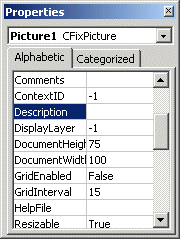
To use the Properties window, enter property values in the window's right-hand column and press Enter. Some properties let you select a value from a list instead of entering it. In these cases, when you select the cell, a drop-down list box appears. To hide the Properties Window, right-click a cell in the window and select Hide from the pop-up menu.
Entering Property Values with the Animations Dialog Box
You can also change property values with the Animations dialog box. When you access the Animations dialog box, the selected object's properties are displayed. Only the properties that accept data appear in the dialog box; read-only properties do not appear. To display read-only properties, use the Visual Basic Editor. For more information on using the Visual Basic Editor, refer to Writing Scripts.
The Animations dialog box groups similar properties together into categories. Each category is represented by a tab in the dialog box. Certain tabs only appear if the selected object has the associated properties. For example, the Text tab only appears for text objects; only text objects have font and font style properties.
Each tab displays the following information:
The following table describes each Animation dialog box tab.
Animation Dialog Box Tabs
|
The tab... |
Allows you to configure... |
|---|---|
|
General |
The object's name, description, and behavior at run-time, as well as a help context ID. |
|
Visibility |
Whether the object is visible. |
|
Size |
The height, the width, the percentage to resize the object by, and whether the object is uniformly resized. |
|
Misc |
The object's layer in a picture. |
|
Position |
The vertical and horizontal position of the object. |
|
Color |
The foreground color, background color, and edge color of the object. |
|
Style |
The fill style, the edge style, and the line width. Not all objects have a fill style. Refer to Coloring and Styling Objects in the Performing Advanced Functions with Objects topic for more information. |
|
Rotate |
The angle of rotation of an object. Ovals, rounded rectangles, and charts do not have rotation properties. |
|
Fill |
The direction to fill the object, and the percentage to fill the object. |
|
Text |
The font size, the font style, the font name, and the text displayed by the object. Text properties only apply to text objects. |
|
Behavior |
The behavior of the object's sizing, scaling, alignment, and text properties. |
When entering R, G, B values in the Animations dialog box, the values must be enclosed in parentheses.
For more detail on the Animations dialog box, refer to Animating Object Properties.
Animating Objects to Modify Properties
Visible objects can be animated, providing an advanced level of control and customization to your pictures. Although what you see in DeltaV Operate is an object performing an action, it is the object's properties that are animated, not the object itself. You animate object properties using the Animations dialog box. This dialog box, available for every object in DeltaV Operate, takes client data, finds its source, and then delivers output based on that source.
For more detailed information on animating objects, refer to Animating Object Properties.
Writing Scripts to Modify Properties
Visual Basic scripts provide developers with maximum flexibility and control of their objects. Although it is not required that you know VBA to work with properties, it is a powerful technology for those who want to use it. Every function on the Animations dialog box is also available through VBA.
For more information on using scripts to customize objects, refer to Writing Scripts. For information on DeltaV Operate methods, properties, and events, refer to the Automation Interfaces online help.