DeltaV Operate provides a picture caching capability that eliminates the need for picture files to be read from the disk drive when opening pictures. Instead, pictures that have been previously opened and closed are held in memory and, when reopened, are read from memory. Picture caching can be enabled at either the system level or on individual pictures, but Emerson recommends enabling picture caching at the system level to optimize DeltaV Operate performance.
With picture caching, you can do the following:
-
Preload pictures that will always remain in the cache.
-
Set the number of pictures to be reopened from the cache.
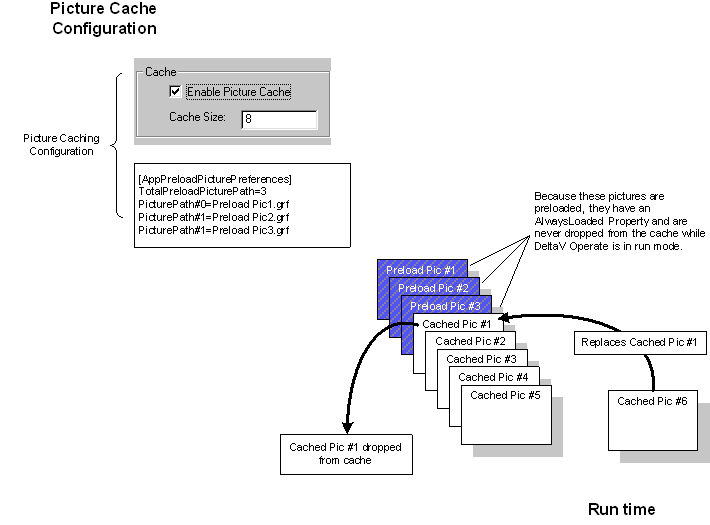
There are two types of pictures you can cache: run-time pictures and preload pictures. Run-time pictures are loaded into the cache when they are closed. When the number of cached pictures exceeds the cache size setting, the oldest picture is dropped from the cache and is replaced with the most recently closed picture. Preload pictures are loaded when DeltaV Operate is started (in run mode). Preload pictures have a property of AlwaysLoaded and are never dropped from the cache while you are in run mode.
System requirements
System requirements for picture caching depend upon the number of pictures you choose to cache.
The current version of DeltaV Operate requires 96 megabytes of physical memory to run. However, as your cache size increases, your memory requirements will increase. Use the following as a guide for memory requirements when caching pictures. Memory should increase:
-
2 to 3 times the file size for each picture that does not include bitmaps and controls.
-
3 to 4 times the file size for each picture that includes bitmaps and controls.
For example, a 2 megabyte file that does not include bitmaps and controls requires a 4 to 6 megabyte increase in memory.
Enabling picture caching
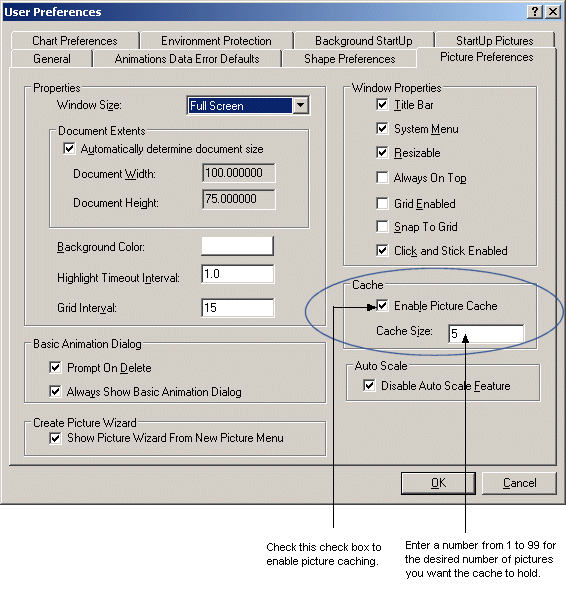
In a new installation of DeltaV Operate, picture caching is enabled by default, with a default cache size of five pictures. In upgrade installations, picture caching is disabled by default. You must enable picture caching in order to preload pictures into the cache or to cache pictures at run time. System-level picture caching is enabled in the User Preferences Dialog box, shown in the following figure.
Most users will not notice any differences in the system behavior when picture caching is enabled. However, if you have done extensive VBA scripting in your application, you may see a few minor differences in the system behavior. If you are upgrading from a previous version of DeltaV Operate, you should review and understand these changes before enabling picture caching. See Making Changes to Pictures at Run Time for more information.
Preloading pictures
You can preload frequently used pictures directly into the picture cache when DeltaV Operate is initially started in run mode. Preloading commonly used pictures guarantees that those pictures will always be stored in the cache. The most recent version of preloaded pictures is always stored in the cache. Preloaded pictures are designated as 'always loaded' by definition; they will not be dropped from the picture cache while you are in run mode.
To preload pictures, you must enable picture caching, configure DeltaV Operate to start in Run mode, and configure the preload pictures list. See DeltaV Operate Workspace help for more information on preloading pictures.
Run-time pictures
At run time, you can also cache pictures that you open and then close.
When picture caching is enabled, DeltaV Operate maintains a list of the most recently closed files. When you close a file, that document is placed on the list of most recently closed files. If this list of closed files exceeds the cache size, the first file closed is unloaded from memory and completely closed. However, preloaded pictures are not dropped from the cache. The following figure shows the picture caching process.
You cannot delete a picture that is closed into the cache. You must wait unto that picture is dropped or flushed from the cache before deleting.
Picture Caching only functions when DeltaV Operate is in run mode. If you switch to configure mode, the most recently closed cache is cleared and any files in the cache are fully closed. All preloaded pictures in the loaded state are then closed. If you switch back to run mode, pictures in the preload list are not loaded into memory.
If you disable picture caching, the most recently used cache is disabled, no pictures are preloaded, and all pictures are then fully closed when the file is closed.
Disabling picture caching for individual pictures
If system-level picture caching is enabled, DeltaV Operate allows you to disable picture caching for individual pictures so that changes made to the picture during run time will not persist when the picture is reopened. Emerson recommends that you disable picture caching on any Main pictures containing the following:
- Batch ActiveX Controls
- Embedded Trend ActiveX Controls
- More than 250 Bitmaps (including Themes Dynamos)
Important
Pop-up pictures that use dynamic substitution during run-time (for example, faceplates, detail displays, and trends) MUST have picture caching DISABLED.
To disable picture caching for a picture:
- With the picture open, right-click the picture name in the system tree or any area in the picture (outside of an object) to open the context menu.
- Select Picture to open the Edit Picture dialog.
- In the Edit Picture dialog, select the Disable caching for this picture check box.
- Click OK to save the changes and close the dialog.