Dynamos overview

Create a pump using a dynamo

  1. From the system tree in configure mode, expand the Dynamo Sets folder, and then double-click PumpsAnim.

    The dynamo set opens at the bottom of your screen.

  2. Back in the system tree, expand the PumpsAnim folder, and then select PumpAnimVertA1.

    The dynamo PumpAnimVertA1 is highlighted in the Dynamo Set at the bottom the screen.

  3. Select PumpAnimVertA1 and drag it onto the picture. (Alternatively, you can drag the dynamo name from the system tree onto the picture.)

    Because this dynamo has animation properties, you are asked if you want to animate the pump color.
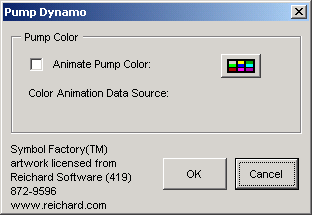
    We will animate the pump color so it changes from red to green when the pump goes from Stop to Start.
  4. Select the Animate Pump Color check box.

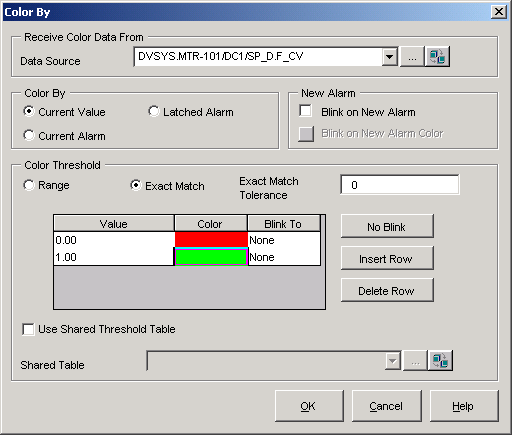
    The Color By dialog opens.

  5. Browse for MTR-101/DC1/SP_D/CV as the Data Source (digital tag) for the pump.
  6. Select Exact Match.
  7. In the Color Threshold group, click the Delete Row button, and then delete all but two rows.
  8. Set the value in the first row to 0.00, click the color bar, and then select red.
  9. Set the value in the second row to 1.00, click the color bar, and then select green.

  10. Click OK in both dialogs.
    The pump is placed on the picture.