A device configuration template defines values for I/O properties contained in a device card. In I/O Studio, you can apply a template to a device placeholder or to a device master.
To apply a template to a device placeholder or device master, click
the vertical ellipsis icon
 at the right of the card
and select
Configure using a template. I/O Studio opens the template folder
corresponding to the selected card. Browse to the appropriate template, select
it, and click
Apply.
at the right of the card
and select
Configure using a template. I/O Studio opens the template folder
corresponding to the selected card. Browse to the appropriate template, select
it, and click
Apply.
You can also start by selecting Apply Template on the Templates menu of the Templates tab.
When a template has been applied to a device placeholder or master,
the link icon
 appears on the right side
of the configuration card. The link indicates that the properties on the card
come from a template. If you change the value of any property on the card, the
icon changes to a broken link
appears on the right side
of the configuration card. The link indicates that the properties on the card
come from a template. If you change the value of any property on the card, the
icon changes to a broken link
 , and that broken link
appears immediately to the right of each changed property.
, and that broken link
appears immediately to the right of each changed property.
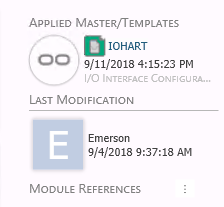
When a template has been applied to a device placeholder or master, the badge at the top right of the placeholder or master card is updated with the name of the template and the date on which it was applied. The following figure shows the Applied Master/Templates badge.
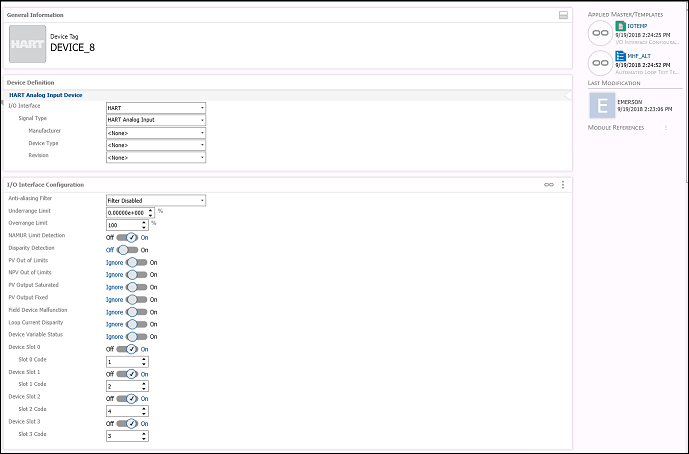
The following figure shows a device placeholder to which an I/O interface configuration template and an automated loop test template have been applied. Note the badge at the top right and the link icon at the right side of the I/O Interface Configuration card.
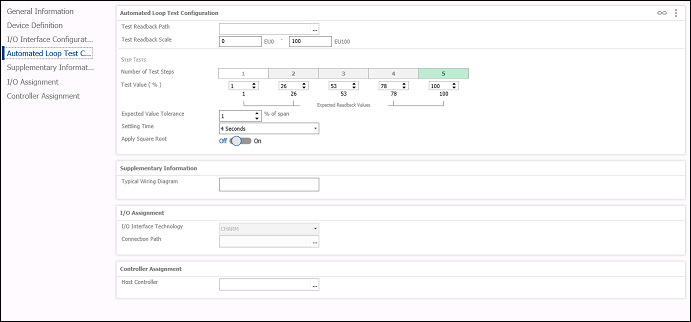
If you click Automated Loop Test Configuration, you see the following. Note the link icon at the right side of the Automated Loop Test Configuration card, indicating that the device placeholder is a consumer of the MHF_ALT template and that its automated loop test properties have the same values it received from that template.
You can have only one template of each type applied to a device placeholder at a time. If you try to apply a template to a device placeholder that is already a consumer of a the same type of template, I/O Studio prompts you to remove the association with that template before applying the new template.