When you first start the Neural application or if you select the Models node, the Configuration View appears. The view contains an overview of the inputs and the outputs of the NN block as configured and a trend view of the currently selected inputs and sample. The appearance of the view depends on whether you have selected Normal or Expert mode.
The following figure shows the Configuration View with the Models node selected.
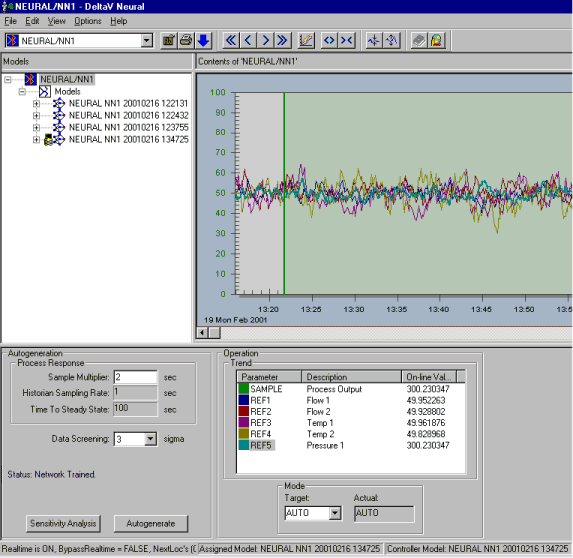
The upper section is divided into a left and right section. The left section is a Hierarchy View showing the model structure of the currently open NN block. The view's title, Models, appears above the view. To select a block, use the drop-down box at the left end of the toolbar. The right section contains either a Trend View or a Configuration View depending on the item currently selected in the Hierarchy view. The text area above this view indicates the selected item with the message: “Contents of ‘Selected Item'.”
The lower section of the application window is the Interaction View that contains options and controls you use to start and stop different operations when creating a Neural Network.
A status field at the bottom of the window displays several pieces of information. If an NN block is not selected the Hierarchy view and the Trend View are blank, and the status field indicates that no connection has been established between the application and a function block.