The Campaign Manager Operator Interface
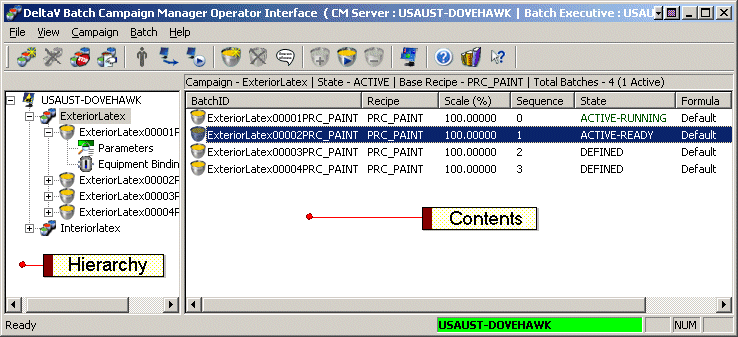
The Campaign Manager Operator Interface is similar in appearance to the DeltaV Explorer. However, the commands and buttons are quite different. To start the Campaign Manager Operator Interface, click .
The left pane shows the information in your campaigns. To explore the hierarchy, you can click the plus sign next to an object. Continue to click the plus signs to drill down into the campaign hierarchy. Click an object in the left pane to display details about the object in the right pane. Select and right-click an object in the left pane. The resulting context menu allows you to do things with the object such as edit, delete, and add a new object. The options available depend on the type of object you select.
The right pane displays the information associated with the item selected in the left pane. Select an object in the right pane, and then right-click. The resulting context menu allows you to do things with the object, such as edit, delete, and add a new object. The options available depend on the type of object you select.