The Batch Operator Interface > Adding and starting a batch

Start the Batch Operator Interface and run the batch

  1. Launch the Batch Operator Interface by clicking StartDeltaV OperatorBatch Operator Interface.
  2. If necessary, select the workstation for the desired Batch Executive.
    The Batch List screen opens.
  3. Click the Add Batch button .
  4. Select OP_FINISH from the list of available recipes.
    Only those recipes specifically assigned to a Batch Executive will appear in this list.
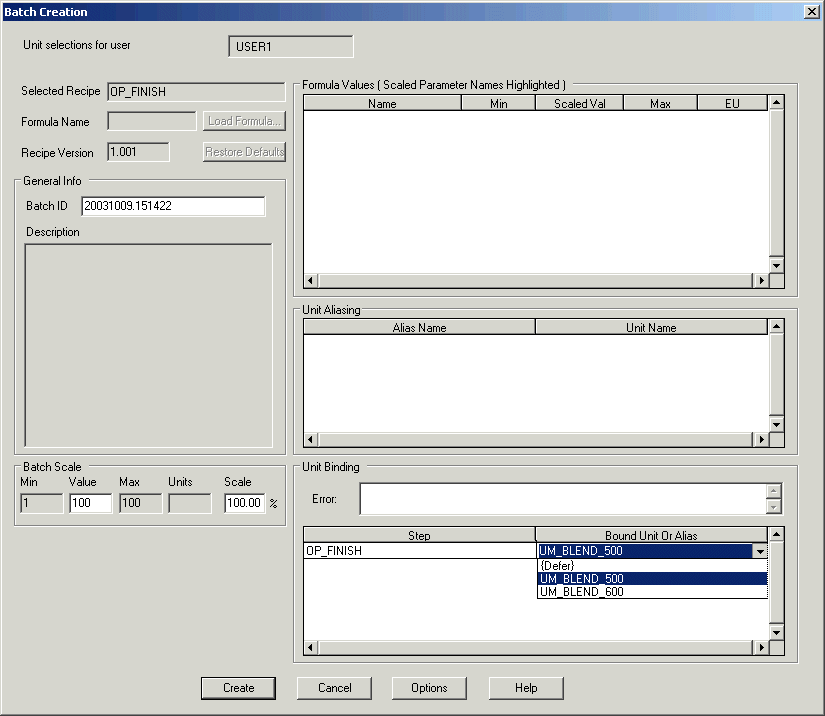
    The Batch Creation dialog opens.

  5. The default Batch ID is the date and time.
    You can leave it as is or edit the ID by typing an appropriate Batch ID (alphanumeric). Since this is a class-based recipe, the Bound Unit has a drop-down list from which you can select the blender you want to use. Select UM_BLEND_500. 
  6. Click Create to add this batch to the batch list.
  7. Select the pending operation you just created, and then click the Start Batch button .
  8. Click OK when asked if you want to start the batch.
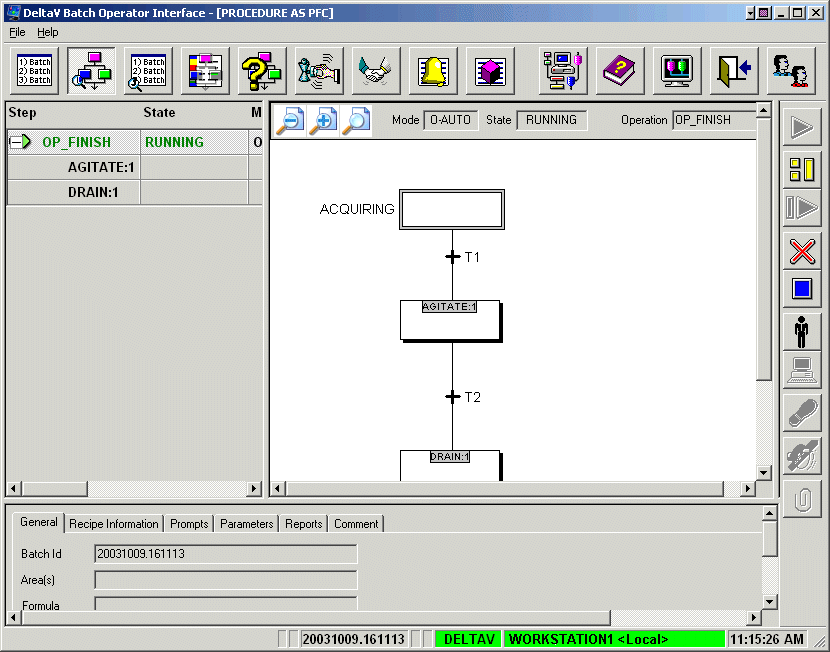
  9. Verify from the Batch List that the batch state indicates RUNNING.
  10. Click the Procedure as PFC button on the toolbar to see how the batch is progressing.
  11. Click the Phase Control button to see the information on this view.
  12. On the Phase Control screen, click Display Process Cells, then click Display Units, and then click the UM_BLEND_500 unit  to view the details on this screen.
  13. Return to the Batch List display by clicking the first button on the toolbar and confirm that the operation goes to Complete.
Tip

If you encounter a failure, make sure that none of the failure conditions have been tripped. Fix the condition that caused the failure, clear the failure, and restart the batch.