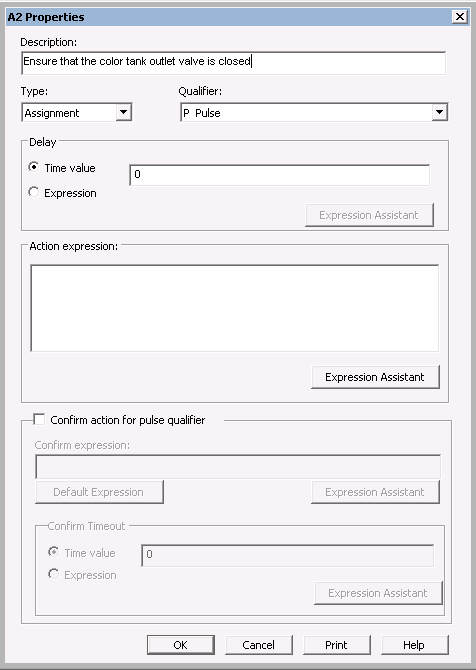
- Enter the description (optional) as "Ensure that the color tank outlet valve is closed," leave the Type as Assignment, and leave the Qualifier as Pulse.
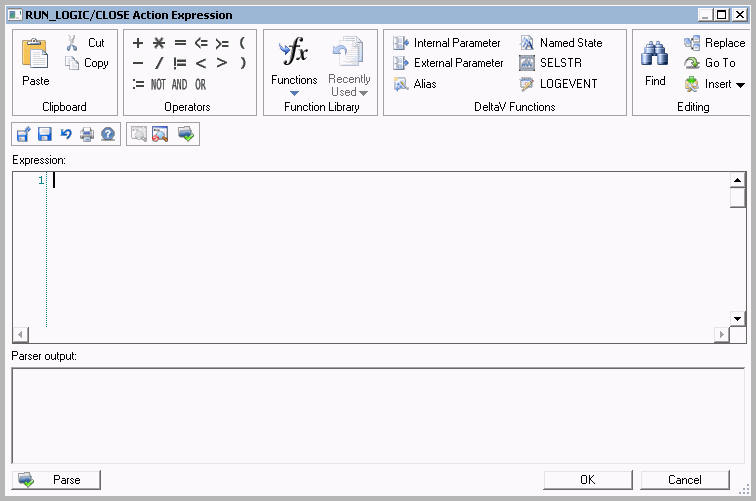
- Click Expression Assistant to open the Expression Editor.
-
Click
Insert Alias. Browse under
for the desired alias.
Note that COLOR_OUT_VLV may appear in the Browse list as both a module block (
 ) and a simple
alias (
) and a simple
alias ( ). Double-clicking the module
block lets you browse to the module parameter for VALVE_SP, whereas selecting
the simple alias allows no further browsing. The first part of the expression
should be defined as shown in the following:
). Double-clicking the module
block lets you browse to the module parameter for VALVE_SP, whereas selecting
the simple alias allows no further browsing. The first part of the expression
should be defined as shown in the following:
'//#COLOR_OUT_VLV#/VALVE_SP'