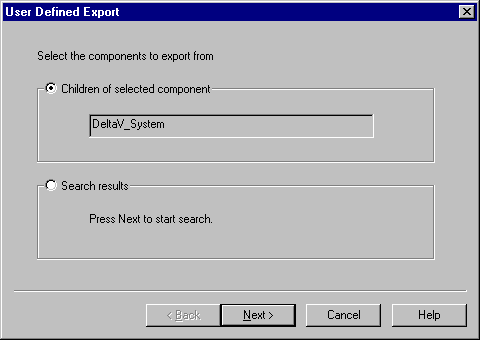
To export an object or any of its component objects, perform the following steps:
-
In DeltaV Explorer, select the object that you want to export. Then, select .
A wizard appears and leads you through the steps necessary to export the object.
The dialog contains two radio buttons that determine how you select data to export:
-
Select the Children of selected component button to choose items in and below the selected component.
-
Select the Search results button to search the DeltaV system for items to export.
After you have selected the items to export by either of these methods the Format Source dialog appears.
NoteYou can specify one object type for each import or export operation. For example, if you build a spreadsheet of channel data, the associated cards and controllers must already exist in the configuration database for the data to import correctly. The imported file can contain the card and controller names as well as the channel data, but these items are only used during the import to map the channel data correctly in the configuration database.
-
-
Select the format specification file that defines the items whose data you are exporting. Then, click Next.
The Export Target dialog appears.
-
Click Browse to open a Select Export File dialog. Either select an existing text (.txt) file or enter a new filename to export data to. Then, click Next.
The Export Results dialog appears.
-
Click the Export button to export the data.
A log of the export actions appears in the dialog. Note that the export files are Unicode text files.