Performing basic operations with graphic elements
When developing displays, layouts, and GEM classes, Graphics Studio
provides various tools to help you add, modify, and manipulate elements on the
editing canvas. This topic provides the following information:
- The basic operations you can perform with elements when developing displays, layouts, and GEM classes
- The tools you can use to perform these operations
Click a link to jump to that section:
- Adding elements to the editing canvas
- Aligning elements
- Connecting elements
- Cutting, copying, and pasting elements
- Deleting elements
- Formatting an element's fill, border, and background
- Formatting the text on a text element
- Grouping elements
- Hiding and unhiding elements
- Locking and unlocking elements
- Moving elements
- Positioning elements
- Reordering elements
- Resizing elements
- Rotating and flipping elements
- Selecting elements
- Spacing elements
- Zooming into or out from content on the editing canvas
Adding elements to the editing canvas
- Palette pane
- Drag and drop from the Palette pane.
- Ribbon
- Add a shape element from the Insert tab > Shapes group.
- Graphics Configuration pane
- Add a shape or text element from the Format / Drawing Tools tab > Insert Shapes group.
Aligning elements
- Aligning elements to the grid
-
- Ribbon
- Use the grid settings in the View tab > Show group.
- Aligning elements to each other
-
- Editing canvas or Selection pane
- Use the Align commands in an element's shortcut menu.
- Ribbon
- Select two or more elements and then use the Align commands in the Home tab > Drawing group or Format/Drawing Tools tab > Arrange group.
- Aligning text on an element:
-
- Ribbon
-
Use the Align commands in the Home tab > Paragraph group.
- Graphics Configuration pane
- Configure the text's horizontal or vertical alignment in the Text tab > Alignment property group.
Connecting elements
- Ribbon
- Add a connector element to the editing canvas from the Home tab > Drawing group or the Insert tab > Shapes group. Then, use the connector to connect the connection points between two elements.
Cutting, copying, and pasting elements
- Editing canvas or Selection pane
- Use the Cut, Copy, Paste, or Duplicate commands in an element's shortcut menu.
- Ribbon commands
- Use the Cut, Copy, and Paste commands in the Home tab > Clipboard group.
Deleting elements
- Editing canvas or Selection pane
- Select an element and press Delete. Press and hold Ctrl to select multiple elements for deletion.
- Ribbon
- Use the Cut command in the ribbon: Home tab > Clipboard group.
Formatting an element's fill, border, and background
- Ribbon
- Use the Fill, Border, and Background commands in the Home tab > Drawing group or Format / Drawing Tools tab > Shape Styles group.
- Graphics Configuration pane
- Modify an element's fill and line properties in the Basics tab > Fill group or Line group.
Formatting the text on a text element
- Ribbon
- Use the Font commands in the Home tab > Font group or Format / Drawing Tools tab > Text Styles group.
- Graphics Configuration pane
- Modify the element's text properties in the Text tab.
Grouping elements
To group, ungroup, or regroup two or more elements, select the
elements and then do one of the following:
- Editing canvas or Selection pane
- Use the Group commands in an element's shortcut menu.
- Ribbon
- Use the Group commands in the Home tab > Drawing group or Format/Drawing Tools tab > Arrange group.
Hiding and unhiding elements
 or
or  next to the element in the
Selection pane.
next to the element in the
Selection pane. Locking and unlocking elements
 or
or  next to an element in the
Selection pane.
next to an element in the
Selection pane. Moving elements
- Editing canvas
- Drag an element to the desired location.
- Graphics Configuration pane
- Modify an element's horizontal and vertical positions in the Basics tab > Geometry property group.
- Shortcut keys
- To slightly move an element in the direction of the arrow, select the element and press the arrow key indicating that direction.
Positioning elements
- Graphics Configuration pane
- Select an element's horizontal or vertical position on the canvas in the Basics tab > Geometry property group.
Reordering elements
- Editing canvas
- Use the Bring Forward and Send Backward commands in an element's shortcut menu.
- Ribbon
- Use the Bring Forward and Send Backward commands in the Home tab > Drawing group or Format / Drawing Tools tab > Arrange group.
Resizing elements
- Editing canvas
- Click an element's handles and drag to resize. To maintain the element's aspect ratio, press Shift while dragging the handles.
- Ribbon
- Modify an element's height or width in the Format / Drawing Tools tab > Size group.
- Graphics Configuration pane
- Modify an element's height or width in the Basics tab > Geometry property group.
- Shortcut keys
- Press Shift plus an arrow key to resize an element in one of the following ways:
Rotating and flipping elements
- Editing canvas or Selection pane
- Use the Rotate commands in an element's shortcut menu.
- Ribbon commands
- Use the Rotate commands in the Home tab > Drawing group or Format / Drawing Tools tab > Arrange group.
- Graphics Configuration pane properties
- Modify an element's Rotation Angle property in the Basics tab > Geometry property group.
Selecting elements
- Editing canvas or Selection pane
- Select the element. Press and hold Ctrl to select multiple elements.
- Ribbon
- Use the Select commands in the Home tab > Editing group.
Spacing elements
Select three or more elements, and then do one of the following:
- Editing canvas or Selection pane
- Use the Distribute Horizontally or Distribute Vertically commands in an element's shortcut menu.
- Ribbon
- Use the Distribute Horizontally or Distribute Vertically commands in the Home tab > Drawing group or Format/Drawing Tools tab > Arrange group.
Zooming into or out from content on the editing canvas
- Ribbon
- Use the Zoom commands in the View tab > Zoom group.
- Mouse shortcut
- Press Ctrl while moving the mouse wheel to zoom in (wheel up) or zoom out (wheel down).
- Status bar settings
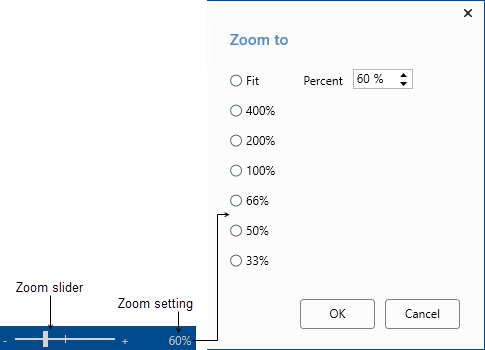
- Use the Zoom slider or Zoom setting in the bottom right corner of the Graphics Studio status bar.