From a workstation on the control network, you can use DeltaV Diagnostics to diagnose most problems on a remote network. From a remote workstation, you can use Diagnostics to diagnose all problems on that remote workstation.
From the Control Network
The Remote Network subsystem can be expanded to show the remote workstations configured and/ or attached to the remote network. The workstations cannot be expanded. In this example, the remote network is made up of two workstations: Turkey and Raven.
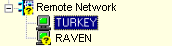
Select Remote Network to see network parameters (Overall Integrity, Connection Integrity, Available Connections, and so on), and select a workstation to see workstation parameters (Node Address, Communication Status, and so on).
A configuration option for remote workstations is Monitor Integrity. (Workstations are configured in the DeltaV Explorer.) If this option is enabled, Diagnostics reports an integrity error for both the Remote Network subsystem and the remote workstation if the remote workstation has integrity problems (not connected or not communicating with the Remote Access Server). If this option is not enabled, Diagnostics will not report an integrity error.
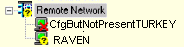
If a problem exists on a remote workstation that has been configured with monitor integrity enabled, the workstation is overlayed with the yellow question mark. If communications are disconnected on a remote workstation that has not been configured with monitor integrity, the workstation is overlayed with a red X. Also, remote nodes that are configured but not communicating are marked "CfgButNotPresent". In this example, Turkey is configured with Monitor Integrity disabled. It is not communicating and therefore is overlayed with the red X, and marked "CfgButNotPresentTURKEY." Diagnostics will report no integrity problems on Turkey. Raven is configured with Monitor Integrity enabled. In this example, Diagnostics is reporting an integrity problem on Raven and overlays it with the yellow question mark. The yellow question mark "bubbles-up" to the Remote Network, Control Network, and DeltaV System levels.
From the Remote Workstation
Expand Remote Network on the Remote Application Station to see remote workstations. Expand Remote Application Station to see Communications, Alarms and Events, Continuous Historian, Remote Network, and OPC subsystems. In this example, the remote workstation Turkey is expanded. Turkey is reporting no integrity problems but Raven is reporting a problem.
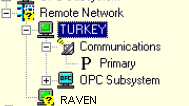
Select a level to see diagnostics parameters at that level.
Display Communication Connections on the Remote Workstation
From the remote workstation, you can see a device connection list for the remote workstation even if the connection to the Remote Application Station is bad. Select the Control Network, right-click, and then select Display Comm Connection list from the context menu.
For help on the communication values, click the column headings (Primary, Detail, and Secondary).