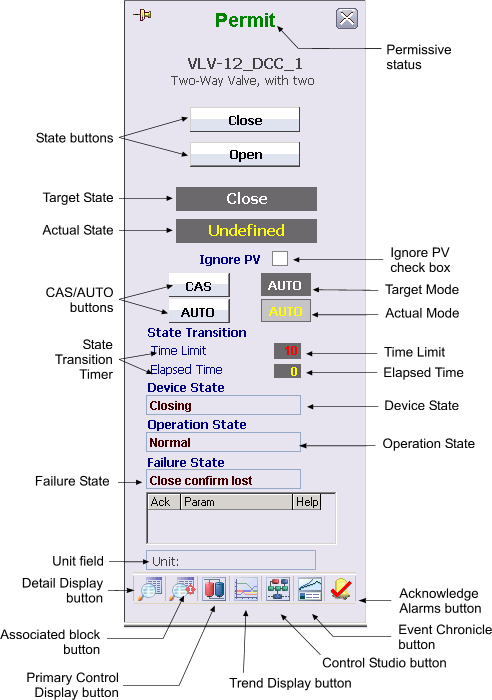
The following items are contained in the faceplate:
-
Permissive Status - When the Permissive option in the DEVICE_OPTS parameter of the Device Control block is set, permissive status is displayed between the Position and Close buttons. When PERMISSIVE_D is True, the word Permit is displayed in green. When False, Permit is displayed in dark red with a No symbol (Ø) overlaid.
-
State buttons - As many as six buttons can appear, depending on the number of states configured and the states selected in the state mask. Each state button is labeled with state name of its corresponding state. Click one of these buttons to set the target state (SP_D of the Enhanced Device Control block) to the state named on the button when the state is permitted.
-
Target State - This area indicates the current target state (SP_D) in white text.
-
Actual State - This area indicates the actual state (PV_D) of the Enhanced Device Control block in yellow text.
-
Ignore PV check box - Toggles the IGNORE_PV parameter in the Enhanced Device Control block. When IGNORE_PV is True PV_D is a copy of OUT_D. IGNORE_PV forces the block logic to accept the requested state as confirmed without using an actual feedback as long as IGNORE_PV is True.
-
CAS/AUTO buttons - These buttons are used to set the target mode to the labeled value of CAS or AUTO. The buttons for CAS (not displayed in the figure) and AUTO mode are displayed when CAS is a permitted mode. When CAS is not permitted, neither of these buttons is displayed.
-
Target Mode - This field contains a word in white text that describes the target mode for the loop. The background changes to blue when the target mode and normal mode are different.
-
Actual Mode - This field contains a word in yellow text that describes the ACTUAL mode of the loop. The background changes to blue when the actual mode and normal mode are different.
-
State Transition timer - The value shown for Time Limit is the confirm time for the current setpoint of the Enhanced Device Control block. The Elapsed Time value is the transition timer that begins to increment when the outputs are driven as a result of a change in SP_D.
-
Device State - This field records the current state of the PV_STATE parameter in the Enhanced Device Control block.
-
Operation State - This field records the current state of the OPERATION_STATE parameter in the Enhanced Device Control block. When the state is Locked, a reset button is visible within the text box.
-
Failure State - The current state of the FAILURE_STATE parameter in the Enhanced Device Control block. If no FAILURE_STATE is present, but the PREV_FAIL_STATE parameter still shows the last failure that occurred, this field displays the PREV_FAIL_STATE value along with an option to reset the previous fail state to Clear.
-
Unit field - This field displays the unit name.
-
Toolbar - Click the icons from left to right to perform the following functions, respectively:
-
Detail Display button: open the detail display for the module.
-
DCC block button: Opens the faceplate for the DCC block associated with this module. If no block is associated, the button is grayed out.
-
Primary Control Display button: open the primary control display.
-
Trend Display button: open the current trend display for the module.
-
Control Studio button: open Control Studio.
-
Event Chronicle button: open the Process History Viewer.
-
Acknowledge Alarms button: acknowledge all alarms on this module.
-
-
Module Error indicator - A flashing blue bar is displayed below the Detail Display button when a module error occurs. This prompts you to go to the detail display to view and clear the error.