The following figure shows the faceplate for a continuous unit module. A continuous unit module is not based on a unit class, so it cannot contain unit phases. Its primary purpose is alarm management for continuous process units such as boilers. The faceplate has an alarm list which shows up to five of the highest priority active or unacknowledged alarms in modules contained by the unit.
Each alarm in the list has a text field for the module tag and one for the alarm name. An unacknowledged alarm blinks the priority color and an ACK button is visible in the left margin. Click the ACK button to acknowledge all alarms in that module. This causes the ACK button to disappear and the alarm field to stop blinking. An inactive, unacknowledged alarm has a hatched appearance. Inactive acknowledged alarms disappear from the list. The ACK button at the top of list can be used to acknowledge all alarms in modules appearing in the list of five. Click the Detail Display button on the toolbar to access an alarm list with up to 50 alarms in the unit.
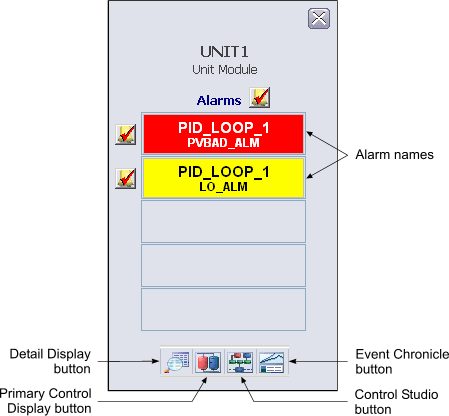
The following items are contained in the faceplate:
-
Alarm indications - Each alarm in the list has a text field for the module tag and one for the alarm name. An unacknowledged alarm blinks the priority color and an ACK button is visible in the left margin. Click the ACK button to acknowledge all alarms in that module. This causes the ACK button to disappear and the alarm field to stop blinking. An inactive, unacknowledged alarm has a hatched appearance. Inactive acknowledged alarms disappear from the list. The ACK button at the top of list can be used to acknowledge all alarms in modules appearing in the list of five. Click the Detail Display button on the toolbar to access an alarm list with up to 50 alarms in the unit.
-
Toolbar - Click the icons from left to right to perform the following functions, respectively:
-
Module Error indicator (not shown) - A flashing blue bar is displayed below the Detail Display button when a module error occurs. This prompts you to go to the detail display to view and clear the error.