A very important element of connecting objects to data sources is the way in which they are connected. You can connect to the data source:
-
From an object's property directly to the data source.
-
From an object's property to an animation object and then from the animation object to the data source.
Directly Connecting to a Data Source
There are times when you may want to establish a direct connection to a data source, such as when you want to connect objects to some third-party controls.
The following figure illustrates the concept of a direct connection.
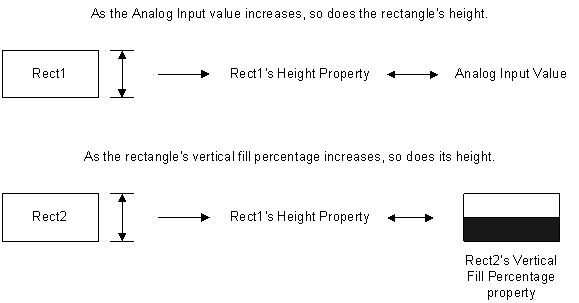
You can form a direct connection either by using the Animations dialog box or by writing a script. Both methods are described below.
You cannot perform a Find and Replace on an object when that object has a direct connection to another object.
Making a Direct Connection Using the Animations dialog box
To make a direct connection using the Animations dialog box:
Making a Direct Connection by Writing a Script
To make a direct connection using a script, you need to call the Connect method. The following procedure shows you how to make a direct animation from an object to a data source on the Click event of a toolbar button in the configuration environment.
For OPC data sources you need to remove any character, such as single quotes, that is not part of the valid server address syntax. For example: "ServerName.'Device:MyAddress'" should change to "ServerName.Device:MyAddress" after you remove the single quotes.
-
Insert a rectangle into a picture and name it MyRect. Right-click the rectangle and select Edit Script to make MyRect available to the Visual Basic Editor.
-
Create a new toolbar and add a button named DirectConnect. See Creating Toolbars for more information on creating toolbars and adding toolbar buttons.Add the following code to the toolbar button's Click event:
Private Sub DirectConnect_Click( ) Dim lStatus as Long MyRect.Connect("Horizontal Position", _ "FIX32.NODE.AI1.F_CV", lStatus) End Sub -
Close the Visual Basic Editor.
-
Click the DirectConnect button and switch to the run-time environment. The horizontal position of MyRect is now driven by the tag FIX32.NODE.AI1.F_CV.
Making Connections through Animations
Usually, you will make connections using Animation objects. Animation objects perform the data conversion between data source and connected object. The figure below illustrates the concept of Animation connections.

Making an Animation Connection Using the Animations Dialog Box
To make a linear animation connection using the Animations dialog box:
-
Double-click a rectangle. The Animations dialog box appears.
-
Select the Size tab and click the Height button. The Animations dialog box expands.
-
Enter a data source to animate the rectangle's height.
-
Select Range from the Data Conversion list box. This will allow the rectangle's height to change within a specific range based on the value of the data source.
-
Click OK. Note that the rectangle now has a linear animation object associated with it that transforms the data source value to scale the rectangle's height.
Making an Animation Connection through a Script
The following script uses the Linear Animation object to form the connection from a rectangle's Vertical Position property to a data source. This script is entered in the Click event of a toolbar named btnDirectConn. In this example, Animations is the picture name. For more information on the methods and properties used in the script, namely SetSource, Connect, DoesPropertyHaveTargets, and GetPropertyTargets, see the Automation Interfaces help.
Example: Building an Animation Connection through a Script
Private Sub btnDirectConn_Click()
    Dim iRect As Object
    Dim iOval As Object
    Dim LinearObject As Object
    Dim strFullname As String
    Dim blnHasTargets As Boolean
    Dim lngStatus As Long
    Dim lngNumTargets As Long
    Dim lngIndex As Long
    Dim strPropertyName As String
    Dim strSource As String
    Dim vtTargets()

    'Create a rectangle and an oval
    Set iRect = Animations.BuildObject("rect")
    Set iOval = Animations.BuildObject("oval")

    'Set some positioning and size attributes on
    'the rectangle
    iRect.HorizontalPosition = 80
    iRect.VerticalPosition = 45
    iRect.Height = 5
    iRect.Width = 10
    iOval.HorizontalPosition = 60
    iOval.VerticalPosition = 35
    iOval.Height = 5
    iOval.Width = 10
    iRect.Commit
    iOval.Commit

    'Create a Linear animation object for the rectangle
    Set LinearObject = iRect.BuildObject("linear")

    'Set the source of the Linear animation object
    LinearObject.SetSource "AI1.F_CV", True

    'Specify the Linear animation object's minimum and
    'maximum Input and Output values
    LinearObject.LoInValue = 0
    LinearObject.LoOutValue = 0
    LinearObject.HiInValue = 100
    LinearObject.HiOutValue = 50

    'Set UseDelta to True to ensure that the base position
    'of the object will be added to the output value when
    'the Linear object evaluates.  If UseDelta is set to
    'False, the output value would be absolute when the
    'Linear object evaluates
    LinearObject.UseDelta = True

    'Connect the rectangle's VerticalPosition property to
    'the output value of the Linear animation object
    strFullname = LinearObject.FullyQualifiedName & _
    ".OutputValue"
    iRect.Connect "VerticalPosition", strFullname, lngStatus

    'Create a string containing the fully qualified data
    'source for the rectangle's VerticalPosition property
    strSource = "Animations." + iRect.Name + _
    ".VerticalPosition"

    'Connect the oval's HorizontalFillPercentage property
    'to the rectangle's VerticalPosition property by using
    'the string created above as a data source
    iOval.Connect "HorizontalFillPercentage", strSource, _
    lngStatus

    'Once connected, you can verify that the Rectangle's
    'Vertical Position is being used as a data source for the
    'Oval's Horizontal Fill Percentage using the Target methods.

    'Now that there is a direct connection to the rectangle's
    'VerticalPosition property, retrieve information about
    'the objects that are using the VerticalPosition property
    'as a data source. This call will return if the property
    'is being used as a data source, how many objects are
    'using it as a data source, the status of the objects,
    'and the index of the object be passed to the
    'GetPropertyTargets method.

    'NOTE: If you only want to determine the number of
    'objects using the property as a data source, you can use
    'the NumberOfTargets property instead.

    iRect.DoesPropertyHaveTargets "VerticalPosition", _
    blnHasTargets, lngNumTargets, lngStatus, lngIndex

    'Use the lngIndex value from the DoesPropertyHaveTargets
    'call to determine which property of the rectangle has
    'targets and to obtain a list of object names that have
    'built connections to this property.

    iRect.GetPropertyTargets lngIndex, strPropertyName, _
    vtTargets

End Sub
Connecting or Disconnecting an Object's Property to a Data Source
The methods in this section connect or disconnect an object's property to a data source.
Entries within brackets ([ ]) are optional.
The Connect method shown below connects an object's property to a data source:
Object.Connect(PropertyName As String, Source As String, _
(Returned) Status As Long, [Tolerance], [Flags], _
[DeadBand], [UpdateRate])
This call connects the property (defined in the PropertyName parameter), to a source (defined in the source parameter.) For example, if you want to connect a rectangle's height property directly to tag AI, you would enter the following:
Dim 1status as Long
Rect1.Connect("Height", "FIX32.NODE.AI.F_CV", 1status)
The Disconnect method disconnects the object's property from a data source:
Sub Disconnect(PropertyName As String)
The SetSource method sets the connection properties for an animation object. Use the SetSource method instead of directly setting the animation object's source property if additional properties have to be specified for the connection. You do not need to specify the data source.
Object.SetSource bstrExpression, [bUseAnyway], _
[vaUpdateRate], [vaDeadband], [vaTolerance], _
[vaConnectionFlags]
If you are performing run-time source substitutions, and you want to preserve the tolerance, deadband, and the update rate for the tag, use the SetSource command instead of the Source property. If you use the Source property, the tolerance, deadband, and update rate settings are reinitialized to 0. The SetSource command provides the appropriate parameters to effectively set these attributes. You can only use the SetSource method for animation objects.
Retrieving Connection Information from a Property's Data Source
The methods described in this section let you retrieve and manipulate a data source that is connected to a specified object's property. For more information on these methods, refer to the Visual Basic for Applications Help file.
Determining if an Object Is Connected to a Data Source
The IsConnected method determines whether an object's property is connected to a data source:
Object.IsConnected(PropertyName As String, (Returned) _
HasConnection As Boolean (Returned) Index As Long, _
(Returned) Status As Long)
This method is typically used in conjunction with the GetConnectionInformation method, which is described later in this section. For more information on the parameters for the IsConnected method, see the IsConnected Method topic in the Automation Interfaces help.
Determining if the Connection Is Valid
The ParseConnectionSource method parses the Data Source name to determine if a connection to an object's property exists. If a connection does exist, it returns the object that is connected to the property, as well as its fully qualified name. It accepts complex expressions and returns individual data sources for a complex expression:
Object.ParseConnectionSource(PropertyName As String, _
Source As String, (Returned) Status As Long, _
Returned Array) ValidObjects, (Returned Array) _
UndefinedObjects, (Returned) FullyQualifiedSource As String)
Example: Script Using ParseConnectionSource Method
The following example parses the AI1.F_CV source to the VerticalFillPercentage property of Oval Oval1 to determine the validity of the data source.
Dim iStatus As Long
Dim validObjs As Variant
Dim UndObjs As Variant
Dim FQSource As String

Oval1.ParseConnectionSource "VerticalFillPercentage",
"AI1.F_CV", iStatus, validObjs, UndObjs, FQSource
Determining the Number of Properties that are Connected to a Data Source
The ConnectedPropertyCount method returns the number of the object's properties that are connected to a data source.
Object.ConnectedPropertyCount (1connectedPropertyCount _
As Long)
The following example lets you find out how many properties in the object Rect1 are connected to data sources, and then converts that number into an integer.
Dim 1ConnectedCount as Long
Dim iNumProperties as Integer

Rect1.ConnectedPropertyCount 1ConnectedCount
iNumProperties = Cint (1ConnectedCount)
In the above example, the number 4 might be returned, which indicates that four of Rect1's properties are connected to data sources. You could use this number to retrieve the connections with the GetConnectionInformation method described in the following section, "Retrieving Other Connection Information."
Retrieving Other Connection Information
The GetConnectionInformation method retrieves information from an object, such as the property that object is connected to, the full name of the data source, and all the source objects:
Object.GetConnectionInformation(Index As Long, (Returned) _
PropertyName as Sting (Returned) Source As String, _
(Returned) FullyQualifiedSource As String, (Returned) _
SourceObjects, [Tolerance], [Deadband], [UpdateRate])
This method is typically used in conjunction with the IsConnected method described earlier. In this example, notice the addition of the index parameter. You can get the index number with the IsConnected method or the ConnectedPropertyCount method. See the Automation Interfaces Help file for more information on these methods.
Example: Script Using GetConnectionInformation Method with IsConnected Method
Dim blnHasConnection As Boolean
Dim lngStatus As Long
Dim lngIndex As Long
Dim strExpression As String
Dim strFullyQualifiedExpression As String
Dim vtSourceObjects
Dim Tolerance
Dim DeadBand
Dim UpdateRate

HorizontalObj.IsConnected "InputValue", blnHasConnection,
lngIndex, lngStatus

If blnHasConnection Then
HorizontalObj.GetConnectionInformation lngIndex, "InputValue",
strExpression, strFullyQualifiedExpression, vtSourceObjects,
Tolerance, DeadBand, UpdateRate
End If
Determining if an Object's Property is Being Used as a Data Source
The NumberOfTargets method returns the number of the object's properties that contain targets, that is, objects that use that object's property as their data source:
Object.NumberOfTargets(NumberOfTargets As Long)
The DoesPropertyHaveTargets method determines if the object's property (as defined by the PropertyName parameter) is being used as a data source and what object is using it:
Object.DoesPropertyHaveTargets(PropertyName As String, _
(Returned) HasTrargets As Boolean, (Returned) _
NumberOfTargets As Long, (Returned) Status As Long, _
Index As Long)
The GetPropertyTargets method retrieves the target object(s) and the property that the target(s) is connected to for the object's specified index number:
Object.GetPropertyTargets(Index As Long, (Returned) _
PropertyName As String, (Returned) Targets)
Retrieving General Connection Information
This section describes additional connection methods for retrieving connection information and making connections. These methods include CanConstruct, Construct, GetPropertyAttributes, and ValidateSource.
GetPropertyAttributes Method
The GetPropertyAttributes method retrieves a list of property attributes for the specified Data Item object. For a tag reference, these are properties such as new alarm status and property range information (EGU limits, list of strings alarm strings (HIHI, LOLO, etc)). Each property queried may have a different set of attributes. For more information on this method, refer to the Automation Interfaces help.
Object.GetPropertyAttributes(FullyQualifiedName As String, _
Attribute As Long, (Returned) Results, (Returned) _
AttributeNames, (Returned) Status As Long)
Example: Script Using the GetPropertyAttributes Method
The following example fetches the attribute information for the HighEGU attribute of the AI1 block on node NODE1.
Dim vtResults
Dim vtAttributes
Dim lStatus As Long
Dim strLoEGU as String
Dim LoEGUval

Oval1.GetPropertyAttributes "FIX32.NODE1.AI1.F_CV", 3,
vtResults, vtAttributes, lStatus
strLoEGU = vtAttributes(0)
LoEGUval = vtResults(0)
In the above example, the variable strLoEGU will now hold the string "FIX32.NODE1.AI1.A_ELO" and the variable LoEGUval will hold tag AI1's low EGU value.
CanContruct Method
The CanConstruct method checks a data source reference for valid syntax. The CanConstruct method must have the default data system defined as part of the object name. For example, the object name AI would not work correctly.
Object.CanConstruct(ObjectName As String, (Returned)_
CanConstruct As Boolean)
Example: Script Using CanConstruct Method
The following example determines whether the datasource AI1 for NODE1 has valid syntax for the Picture TestPicture.
Dim bCanConstruct As Boolean

TestPicture.CanConstruct "FIX32.NODE1.AI1", bCanConstruct
Construct Method
The Construct method launches the Quick Add user interface and prompts you for information needed to create the tag. If Status returns 0, then the tag has been created:
Object.Construct(ObjectName As String, (Returned) Status _
As Long)
Example: Script Using Construct Method
The following example displays the QuickAdd user interface that prompts the user for the information needed to create the tag NewAI1 for the Oval object Oval1 on node NODE1.
Dim lStatus As Long

Oval1.Construct "FIX32.NODE1.NEWAI", lStatus