The integration of VBA into DeltaV Operate provides you with additional control and flexibility to develop, manipulate, and animate objects and graphics in DeltaV Operate. This is important since objects make up a large part of your application.
This chapter gives you some specific examples on how you can use VBA scripting to enhance the performance of objects in your application. It also gives you helpful tips for working with objects and their characteristics.
VBA Object Count Limit
Microsoft currently limits the amount of VBA controls to 1207 per project. A picture is considered a VBA project. The current version of DeltaV Operate provides a VBA Object Count warning that notifies you when you are approaching the maximum level.
After creating your 1147th control, DeltaV Operate provides a dialog box notifying you that you are approaching the maximum allowed and should begin to remove unnecessary controls. If you continue to create scripts without removing them, you will continue to receive the warning. If you try to create your 1208th control, DeltaV Operate notifies you that the script cannot be created. To continue adding scripts, you must remove some VBA controls.
Object Availability in the VB Editor
To make a single object available in the VB Editor:
To make a group of objects available in the VB Editor:
When you select Enable Scripts, DeltaV Operate adds the objects to the VBA project, but does not start the VB Editor. Objects that are visible, such as rectangles and ovals, are not automatically available in the Editor.
For optimization purposes, if you choose not to tie a script to the object, it does not remain available after you close the picture. You will have to select it again in the picture and add the objects to the VBE if you want to use them in a script.
You can, however, forward-reference objects that are not available in the VBE. For example, you can write a script tied to Rect1 that references Oval1, as shown in the following example:
Oval1.Visible = False
The above code is acceptable even when Oval1 is not available to the VBE. The only difference in the VBE between objects that are available and objects that are not available is that the list of properties and methods available to the object appear when you type the period (.) after available objects. When forward-referencing objects, the objects will be added to the project when the picture is closed or saved.
The following objects are always available in the VBE:
The DeltaV Operate Object Hierarchy
There is a general hierarchy of objects in DeltaV Operate. The individual objects, as well as all of their related properties, methods, and events, are described in much greater detail in the Object Summary Help Topic in the Help file.
The Object Browser figure in the VBA Object Browser, shown later in this topic, is an image of the DeltaV Operate object hierarchy. The top layers in the object hierarchy are the Application and the System objects. The Application object represents the DeltaV Operate application. The System object is on the same level as the Application object and contains system information, date, time pathways and so on.
The next level below the Application object is the documents object which is a collection of active documents within DeltaV Operate such as pictures, schedules and so on.
The third level in the object hierarchy is the Page Object, which may be a picture, dynamo set or scheduler object. If the page object is a picture, it can contain lines, rectangles and so on. If the page object is a Scheduler object, it might contain timer or event objects.
Animation objects are unique to DeltaV Operate pictures and do not apply to other document objects.
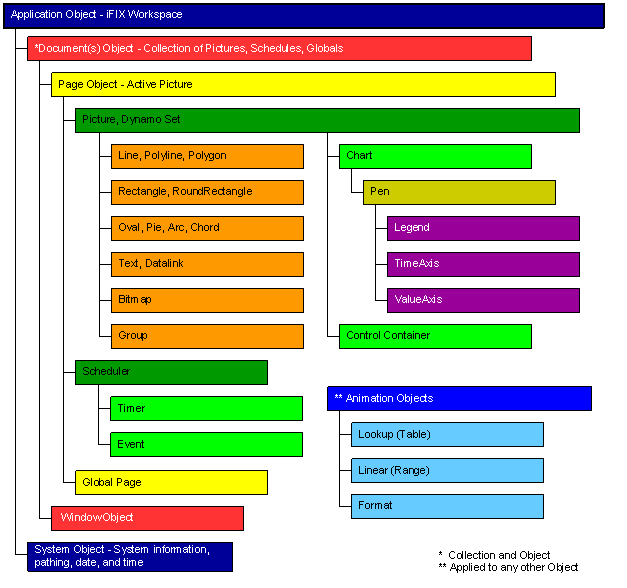
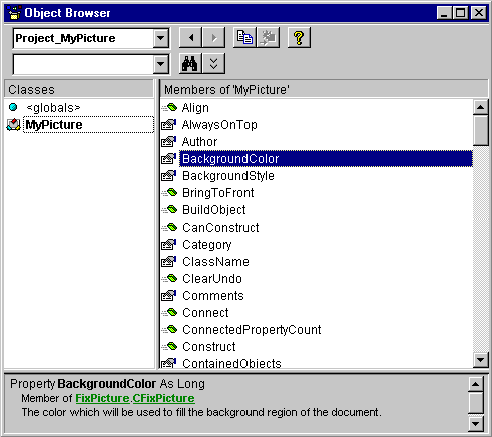
VBA Object Browser
In addition to the Automation Interfaces Help file, another great tool for visualizing the object hierarchy is the VBA Object Browser. The Object Browser displays the classes, properties, methods, events, and constants available from object libraries and the procedures in your project. You can use it to find and use objects you create, as well as all objects within DeltaV Operate. To launch the Object Browser in the VBE, press F2 or select the Object Browser command from the View menu.
Connecting Objects to Data Sources to Create Animations
In order to animate the property of an object, you must connect that property to the data source that is providing the data. For example, if you want a tank to fill based on the output of a PLC connected to the tank, you would connect the vertical fill property of the tank's cylinder with the database point that contains the real-time value of the correct PLC address.
The transformation of data between objects occurs through animation objects. There are three types of animation objects:
-
Linear – Converts data from one range of values to another, thereby performing signal conditioning. For example, if a data source has EGU limits from 0 to 65535, and a tank's fill percentage has a range of 0 to 100, the Linear object transforms the data source range to the tank's fill percentage range.
-
Lookup – Uses a table structure to map either a range of values or exact values from a data source to a single value of the connected object's property. For example, if a data source has multiple alarm values, the Lookup object maps each alarm value to a rectangle's color. You can also set up a Lookup object to divide a range of values into levels or rows, and map those levels to a rectangle's color. The Lookup object also has a Toggle property that can be used for blinking colors.
-
Format – Converts the source data into a string. When you set up a data source for a data link, for example, you actually create a Format object that transforms the data source into a string.
Visual Basic has many methods you can use to make connections to data sources. These various methods are detailed in the following sections.