Introduction to the DeltaV Excel Add-in

Install the DeltaV Excel Add-in

The DeltaV Excel Add-in can only be installed by the local administrator or by a user in a group with administrator privileges. Prior to installation, you must start Microsoft Excel at least once to create Registry keys required by the DeltaV Excel Add-in.

Important

Any additional user who wants to use the DeltaV Excel Add-in on the workstation where it has been installed must also complete the steps in Set up users below. These steps are also required for a user account on a Remote Desktop Services system, including the user who installed the DeltaV Excel Add-in.

To install the DeltaV Excel Add-in, complete the following steps:
  1. Log on as a user with administrator privileges.
  2. Start and exit Microsoft Excel.
  3. In Windows Explorer, navigate to \DeltaV\bin\ExcelAddInRuntime, and then double-click setup.exe.

    If the Excel AddIn Runtime dialog appears, prompting you to install additional required items, click the Install button.

    If a prompt appears, indicating that the installation of the DeltaV Excel Add-in needs to restart the computer, click the Yes button.

  4. When the Customer Information dialog appears, enter the name of your organization in the Company Name field, select the Anyone who uses this computer (all users) option, and then click the Next button.
  5. When the Ready to Install the Program dialog appears, click the Install button.
    Following installation, you can select DeltaV Excel Add-in options by navigating to DeltaVRuntime Data on the Add-Ins ribbon of Microsoft Excel.

Set up users

To set up the users on the workstation where the DeltaV Excel Add-in has been installed (any existing or any new (additional) users); or for a user account on a Remote Desktop Services system, complete the following steps:

  1. Open Microsoft Excel.
  2. Click the File tab, and then click Options.
  3. In the Excel Options dialog, click Add-Ins.
  4. In the View and manage Microsoft Office Add-ins window, select Excel Add-ins from the Manage list, and then click the Go button.
  5. In the Add-Ins dialog, click the Automation button.
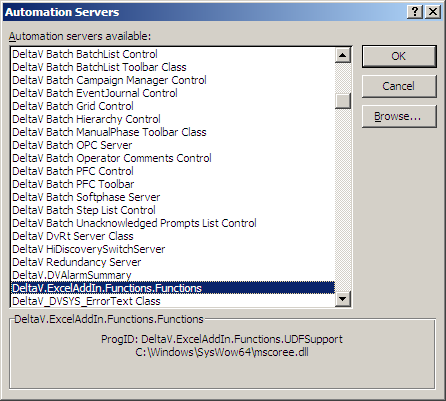
  6. In the Automation Servers dialog, highlight DeltaV.ExcelAddIn.Functions.Functions, and then click the OK button.


  7. Close the Add-Ins dialog by clicking the OK button.
  8. Exit and restart Excel.