This topic introduces additional functions available for working with picture files. Many of these functions are accessible from the picture context menu.
Sharing Picture Files
DeltaV Operate lets you share picture files so that other users can access pictures on a different system. You can do this by placing the files on a file server and sharing a path.
Replacing a Picture
To replace a picture with another picture, use the Replace Picture Expert, located on the DeltaV Operating Experts toolbar. This expert allows you to close a picture and replace it with another picture in both the configuration and run-time environments. If desired, you can specify an alias to the picture that is automatically assigned as the new picture name.
Changing the Picture View
You can easily change the picture view options using the picture context menu. The view options include Zoom, Default View, Full View, Fit Picture to Window, and Fit Window to Picture. Refer to Controlling a Picture's Magnification in the Planning Your Pictures topic for more information on specifying viewing options.
Tiling and Cascading Pictures
As you create and modify pictures, you may want to have several pictures open at once. Depending on the size and position of the pictures opened, this can result in one or more pictures being hidden behind the top picture. Although you can use the Show function to switch from one to another, or manually move or resize a picture, you may want to view more than one at a time. A fast, easy way to arrange multiple pictures is to tile or cascade them using the Window menu.
When you tile two or more pictures, DeltaV Operate arranges each picture so that they do not overlap and resizes each window so that all the pictures fit in the available client area. You can tile pictures horizontally or vertically. To do this select Tile Horizontal or Tile Vertical from the Window menu. Both methods of tiling are shown in the following figures.
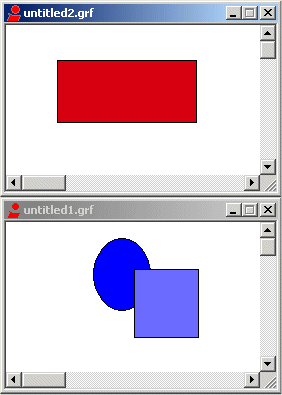
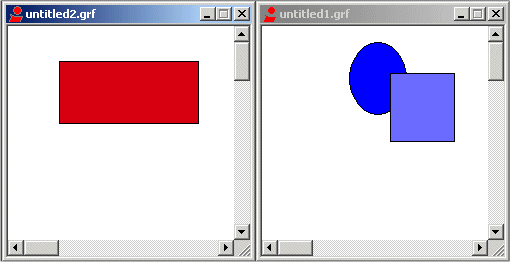
You can open as many pictures as you want, limited only by the amount of memory in your computer.
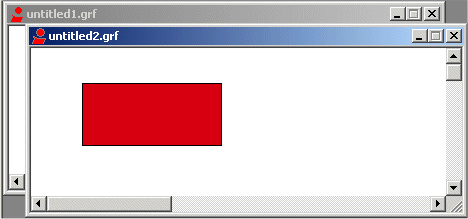
When you cascade two or more pictures, the pictures are staggered and resized equally so that you can select each picture by its title bar. This is illustrated in the following figure. To cascade pictures, select Cascade from the Window menu.
Creating Pictures Without Title Bars
You can also create pictures with no title bars. This is a particularly helpful feature when you want to view your pictures as is in your operator display. The following figure illustrates a picture without a title bar.
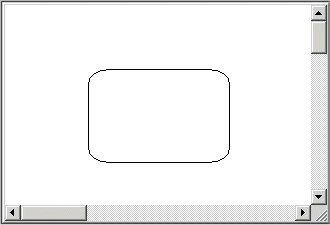
You cannot tile or cascade a picture without a title bar.
If you want to create a full screen picture without a title bar make sure that you deselect the Title bar check box. To do this:
-
Select User Preferences from the DeltaV Operate menu.
-
Click the Picture Preferences tab.
-
Deselect the Titlebar check box.
-
Click OK.
If you intend to autoscale pictures created without title bars, the picture must be started without a title.
There are many additional style options for the picture window. For more information on these window properties, refer to the Planning Your Pictures section.
Updating Popup Pictures and Dynamos
 The DeltaV system maintains multiple copies of pop-up pictures,
such as Faceplate and Detail pictures. When you modify a Faceplate or Detail
picture, you must update the other copies of this picture. Click the Update
Popup Pictures button on the DeltaV Utilities toolbar to update your pop-up
pictures.
The DeltaV system maintains multiple copies of pop-up pictures,
such as Faceplate and Detail pictures. When you modify a Faceplate or Detail
picture, you must update the other copies of this picture. Click the Update
Popup Pictures button on the DeltaV Utilities toolbar to update your pop-up
pictures.
When updating popups on a system that has VCAT for Displays enabled, you must have the preference, Auto Check Out and In, disabled. To update the popup pictures, you must follow these steps:
-
Check out all popup pictures to their respective Pic\Temp folders.
-
Next, you are prompted to check out each popup picture as the utility runs.
-
When all of the popup pictures have been updated, you must manually check in (from DeltaV Explorer) all the popup pictures in the following folders:
-
Download the ProfessionalPLUS and the workstations where these pictures will be used so that a current copy from the VCAT database is sent to those workstations.
 Use the Dynamo Update button to bring dynamos in existing
pictures up to the current dynamo version. To use this feature, open the dynamo
sets your pictures use, then select one or more pictures to update. This
feature searches the open dynamo sets, compares the versions on the selected
pictures with the versions in the dynamo sets, and updates all older versions
with newer enhanced dynamos.
Use the Dynamo Update button to bring dynamos in existing
pictures up to the current dynamo version. To use this feature, open the dynamo
sets your pictures use, then select one or more pictures to update. This
feature searches the open dynamo sets, compares the versions on the selected
pictures with the versions in the dynamo sets, and updates all older versions
with newer enhanced dynamos.
Updating Main Pictures and Dynamos
 The DeltaV system maintains two copies of the main pictures so
that a picture can be opened on more than one monitor at a time (on multiple
monitor workstations). Each copy is named by appending a number (1 in this
case) at the end of the name. Therefore, when you create or modify a main
picture, update the other copy of this picture if you are going to open
multiple instances of the main picture simultaneously. Click the Update Main
Pictures button on the DeltaV Utilities toolbar to update your main pictures.
The DeltaV system maintains two copies of the main pictures so
that a picture can be opened on more than one monitor at a time (on multiple
monitor workstations). Each copy is named by appending a number (1 in this
case) at the end of the name. Therefore, when you create or modify a main
picture, update the other copy of this picture if you are going to open
multiple instances of the main picture simultaneously. Click the Update Main
Pictures button on the DeltaV Utilities toolbar to update your main pictures.
The system tree hierarchy is populated when DeltaV Operate opens and might not refresh when updating pictures. To reload the list of pictures in the hierarchy, you must close DeltaV Operate and reopen it.
Picture names that are 31 characters cannot be duplicated as this is the maximum length for a filename in DeltaV Operate.
The DeltaV system contains default main pictures that are shipped with the second copy. The copy is stored in the DVData\Graphics-iFix\Pic\Temp\Main folder. These pictures are
AlarmFilter
AlarmList
AlarmSum
AlmSupp
BatchActivePhases
BatchAlarms
BatchArbitration
BatchJournal
BatchListView
BatchPFCView
BatchPhaseView
BatchPrompts
CfgAsst
DVStatus
HWAlarmSum
Opcapps
OperatorKeyboardMain
OpKybdPicture
OpKybdPicture2
OpKybdPicture3
Ovw_ref
SamMixer
SISAlarmlist
The following pictures cannot be duplicated (and are not shipped with a duplicate).
DeltaV
SamBoiler
SamField
SamPlant
Samples
When updating main pictures on a system that has VCAT for Displays enabled, you must have the preference, Auto Check Out and In, disabled. To update the main pictures, you must follow these steps:
-
Check out all main pictures to the Pic\Temp\Main folder.
-
Next, you are prompted to check out each main picture as the utility runs.
-
When all of the main pictures have been updated, you must manually check in (from DeltaV Explorer) all the main pictures in the following folders:
-
Download the ProfessionalPLUS workstation and the workstations where these pictures will be used so that a current copy from the VCAT database is sent to those workstations.
Use the Dynamo Update button to bring dynamos in existing
pictures up to the current dynamo version. To use this feature, open the dynamo
sets your pictures use, then select one or more pictures to update. This
feature searches the open dynamo sets, compares the versions on the selected
pictures with the versions in the dynamo sets, and updates all older versions
with newer enhanced dynamos.
Changing Multiple Picture Properties
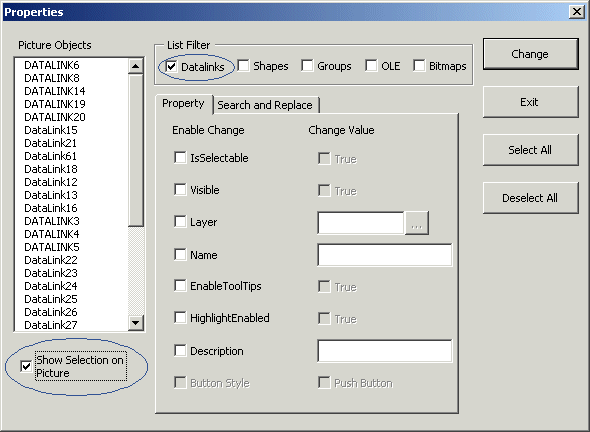
Using the Multiple Property Changes button on the DeltaV Picture toolbar, you can select multiple instances of the same property on the picture to change. For example, you can change the font properties for all the datalinks at once. The following procedure is an example for changing the font settings in a DeltaV Operate picture.
-
Choose the Multiple Property Changes
 icon from the DeltaV_Picture
toolbar.
icon from the DeltaV_Picture
toolbar.
-
Select Show Selection on Picture option.
-
Clear all but the Datalinks check box in the List Filter section.
-
Click the Select All button.
-
Click Exit.
-
Without altering any font settings, hold down the Enter key (or click the OK button) until all of the Datalink objects are corrected.
 from the DeltaV_Text toolbar.
You can also change the font on all Text objects by repeating the above procedure and selecting Shapes. To change the properties on all bitmaps, select Bitmaps in the List Filter section. In this manner, you can change the properties on any of the object types listed in the Multiple Properties dialog.
Using DeltaV Operate Display Parameters
DeltaV Operate provides a number of displays that rely on specific parameters that utilize summary information generated by the DeltaV system. Such as, alarm banner displays, alarm filter by plant area displays, node status display, and so on. The information is presented to the operator on a DeltaV Operate display (graphic).
In addition, displays can use parameters differently from controller configuration. As such, some parameters, called runtime parameters, exist in the controller primarily for displays. While accessible for control logic, they are not presented in the DeltaV browser. A few parameters have display-only fields available in addition to the fields available to control strategies.
Each Operator Station generates its own summary information based on the operator currently logged on, areas assigned to that workstation and a collection of local settings that the operator can change to alter the summary information presented.
This summary information is specific to the workstation. That is, the content of the alarm banner depends on which operator is logged on, the licenses assigned to the workstation, and what plant areas have their alarms turned off. The display parameters that are workstation specific are called Workstation Parameters and are referenced by: THISUSER, U$, and Area.
For complete list of the parameters and more information on using them, refer to the help available from the DeltaV Operate parameter browse dialog.