The following sections detail the animation properties and methods you can use to connect an object's properties to data sources and create animations.
General Animation Object Properties and Methods
The following table provides the syntax and description for general animation object properties and methods.
|
Object.ConnectionFailed |
Determines if the connection attempt was successful. |
|
Object.Failed Source |
Returns the source of the connection attempt, if the SetSource method failed. |
|
Object.InputValue |
Contains raw data from the data source which will be transformed by the animation object. |
|
Object.OutputValue |
Contains the data which resulted from the transformation of the InputValue data. |
|
Object.Source |
Contains the source string for an animation (the input data source.) This property internally builds a connection between the input value property of the animation and the data source specified by this property. If you have used the correct syntax for the source, setting the Source property will work correctly. Using the SetSource method is the more effective way to set an animation object's source. |
|
Object.SourceValidated |
Specifies whether the animation object's source property has a valid data source connection. |
|
Object.SetSource (bstrExpression As String, [bUseAnyway As _ Boolean], [vaUpdateRate], _ [vaDeadband], _ [vaTolerance], _ [vaConnectionFlags] |
Sets the connection properties for an animation object. This method is used instead of directly setting the animation object's source property if additional properties have to be specified fo rthe connection. You do not need to specify the data source. Note The SetSource method can only be used for animation objects. |
Linear Animation Object Properties
The following table provides the syntax and description of linear animation object properties.
|
Object.HiInValue |
Specifies the upper limit on the input value range. |
|
Object.HiOutValue |
Specifies the upper limit on the output value range. |
|
Object.LoInValue |
Specifies the lower limit on the input value range. |
|
Object.LoOutValue |
Specifies the lower limit on the output value range. |
|
Object.UseDelta |
Specifies whether to use the absolute or relative value to set the output value range. The object will always start at the low output value. |
Lookup Animation Object Properties and Methods
The following table provides the syntax and description of lookup animation object properties and methods.
Connection Examples: Using the Lookup Object
This example shows you how to check to see if an object is connected to a data source, then lets you build a Lookup object that overwrites an existing color table.
Example: Using Range Comparison
In this example, the picture contains a rectangle named Rect1.
Private Sub BtnLookup_Click()
    Dim blnIsConnected As Boolean
    Dim lngIndex As Long
    Dim lngStatus As Long
    Dim strPropName As String
    Dim strSource As String
    Dim strFQSource As String
    Dim vtSourceObjects
    Dim LookupObject As Object
    Dim strFullname As String
    Dim blnIsEmpty As Boolean

    'Check to see if the rectangle's ForegroundColor
    'property is already connected to a data source
    Rect1.IsConnected "ForegroundColor", blnIsConnected, _
    lngIndex, lngStatus

    'If it is, use the Disconnect method to remove the
    'existing property connection
    If blnIsConnected Then
        Rect1.Disconnect "ForegroundColor"
    End If

    'If a ForegroundColor animation does not exist, build an
    'empty lookup animation object off of the rectangle
    If (TypeName(LookupObject) = "Nothing") Then
        Set LookupObject = Rect1.BuildObject("lookup")
    End If

    'Add levels to your lookup animation object with a range
    'comparison using the AddLevel method. The following
    'table will have inputs between 10 and 20 displaying the
    'color with the RGB value of 255 (red), 21 through 40
    'would display RGB 65535 and so on
    LookupObject.AddLevel 10, 255, 20
    LookupObject.AddLevel 20, 65535, 40
    LookupObject.AddLevel 40, 65280, 60
    LookupObject.AddLevel 60, 16711680, 80
    LookupObject.AddLevel 80, 8388736, 100

    'Use the SetSource method to connect the lookup animation
    'object to the data source object. This connection
    'overwrites any existing color table set up
    LookupObject.SetSource "AI1.F_CV", True

    'We have connected the InputValue property of the lookup
    'animation object to the data source. Now, we will
    'connect the animation object's OutputValue property to
    'the shape. Its output is connected to the object it is
    'animating.
    strFullname = LookupObject.FullyQualifiedName & _
    ".OutputValue"
    Rect1.Connect "ForegroundColor", strFullname, lngStatus

End Sub
Similarly, you can create an Exact Match color table using the LookupExact method and the ExactMatch property of an object. The following example shows you how.
Notice that, again, the example first checks that the object is connected in the first place, then proceeds to manipulate the object's property based on that connection.
Example: Using Exact Match Lookup
In this example, the picture contains a rectangle named Rect2.
Private Sub BtnLookupExact_Click()
    Dim blnIsConnected As Boolean
    Dim lngIndex As Long
    Dim lngStatus As Long
    Dim strPropName As String
    Dim strSource As String
    Dim strFQSource As String
    Dim vtSourceObjects
    Dim LookupObject As Object
    Dim strFullname As String
    Dim blnIsEmpty As Boolean

    'Check to see if the rectangle's ForegroundColor property
    'is already connected to a data source
    Rect2.IsConnected "ForegroundColor", blnIsConnected, _
    lngIndex, lngStatus

    'If it is, use the Disconnect method to remove the
    'property connection
    If blnIsConnected Then
        Rect2.Disconnect "ForegroundColor"
    End If

    'If a ForegroundColor animation does not exist, build an
    'empty lookup animation object off of the rectangle
    If (TypeName(LookupObject) = "Nothing") Then
        Set LookupObject = Rect2.BuildObject("lookup")
    End If

    'To create an exact match color table, the user can do
    'two things: (1) Call AddLevel with the same parameters
    'as a range comparison and set the ExactMatch property to
    'true OR (2) Call AddLevel without the second input
    'parameter. The following table will have inputs 10
    'displaying displaying the color with an RGB value of 255
    '(red), 21 would display RGB 65535 and so on.

    LookupObject.AddLevel 10, 255, 20
    LookupObject.AddLevel 21, 65535, 40
    LookupObject.AddLevel 41, 65280, 60
    LookupObject.AddLevel 61, 16711680, 80
    LookupObject.AddLevel 81, 8388736, 100
    LookupObject.ExactMatch = True

    'Use the SetSource method to connect the lookup animation
    'object to the data source object. This connection
    'overwrites any existing ColorTable set up.
    LookupObject.SetSource "AI1.F_CV", True

    'We have connected the InputValue property of the lookup
    'animation object to the data source. Now, we will
    'connect the animation object's OutputValue property to
    'the shape. Its output is connected to the object it is
    'animating.
    strFullname = LookupObject.FullyQualifiedName & _
     ".OutputValue"
    Rect2.Connect "ForegroundColor", strFullname, lngStatus

End Sub
For information on changing data sources at run-time, refer to Changing Data Sources in the topic Working in the Run-Time Environment.
Format Animation Object Properties
This table provides the syntax and description of Format Animation Object properties.
|
Object.Format |
Specified the C Sprintf Format string into which the input is formatted for the Format object. |
|
Object.SetNumericFormat ([WholeDigits], [DecimalDigits], _ [Justify]) |
Sets the format of a numeric value. |
|
Object.SetStringFormat ([Format]) |
Sets the raw formatting for a string value. |
Connection Example: Animating the Rotation of a Rectangle
The example in this section shows you how to animate an object through a VBA script; specifically, animating the rotation of a rectangle named Rect1. The code is taken directly from the Rotate Expert.
For this example, you need to provide operators with an interface in the configuration environment which allows them to animate the rotation of the selected object. You also need to allow them to select a data source with the Expression Editor control. For this example, assume that the operators will select a database block as their data source. You also want to allow them to select the minimum and maximum input and output values. After applying this form to a selected object, the operator can switch to run and see the object rotating as specified.
First, develop the basic form as shown in the following figure:
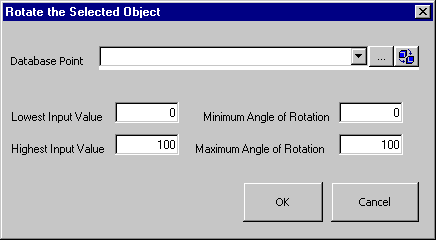
The following script is intended for the OK button's Click event. The script creates an animation object, connects the animation object to the data point, and then connects the animation object to the selected shape.
Example: Animating the Rotation of an Object
Private Sub cmdOK_Click()
Dim CurrentObject as Object
Dim RotateObject As Object
Dim i As Integer
Dim blnHasConnection As Boolean
Dim lngIndex As Long
Dim lngStatus As Long
Dim strFullName As String
Dim Result As Boolean
Dim FailedSourceString As String
Dim strPropertyName As String
Dim strFullQualifiedSource As String
Dim strExpression As String
Dim strFullyQualifiedExpression As String
Dim vtSourceObjects
Dim dblTolerance As Double
Dim dblDeadband As Double
Dim dblUpdateRate As Double

On Error GoTo ErrorHandler

'Set CurrentObject equal to the first selected object in
'the picture.
Set CurrentObject = _
Application.ActiveDocument.Page.SelectedShapes.Item(1)

'Check if the selected object's RotationAngle property is
'already connected to a datasoure using the IsConnected
'method.
CurrentObject.IsConnected "RotationAngle", blnHasConnection,
lngIndex, _
lngStatus

'If it is, use the GetConnectionInformation method to get
'the fully'qualified name of the data source as well as the
'data source object.
If blnHasConnection Then
    CurrentObject.GetConnectionInformation lngIndex, _ 0
    strPropertyName, strExpression, _
    strFullyQualifiedExpression, vtSourceObjects
    'vtSourceObjects is a variant array of the data source
    'objects connected to the RotationAngle property of the
    'selected object. Get the first object in the array.
    'Assume that the first object connected to the
    'RotationAngle is the one you want.
    Set RotateObject = vtSourceObjects(0)
End If

'If a rotation connection does not exist, build an empty
'linear animation object off of the current object.
If (TypeName(RotateObject) = "Nothing") Then
    Set RotateObject = CurrentObject.BuildObject("Linear")
End If

'Use the SetSource method to connect the Animation object to
'the data source object that the user entered in the Expression
'Editor. This connection overwrites any existing Rotation set
'up.
RotateObject.SetSource ExpressionEditor1.EditText, True, _
ExpressionEditor1.RefreshRate, ExpressionEditor1.DeadBand, _
ExpressionEditor1.Tolerance

'Check the Animation object's ConnectionFailed property. If the
'connection failed, send a message to the user.
If RotateObject.ConnectionFailed = True Then
    FailedSourceString = "Data Source:  " & _
    RotateObject.FailedSource & " doesn't exist."
    Result = MsgBox(FailedSourceString, vbOKOnly)
    Exit Sub
End If

'Now, we can set the LoInValue, HiInValue, LoOutValue, and
'HiOutValue of the Animation object with the values the user
'entered in the form.
RotateObject.LoInValue = Val(txtLoIn.Value)
RotateObject.HiInValue = Val(txtHiIn.Value)
RotateObject.LoOutValue = Val(txtMinAngle.Value)
RotateObject.HiOutValue = Val(txtMaxAngle.Value)

'We connected the InputValue property of the Animation object
'to the data source.  Animation objects receive their input
'from sources. Now, we will connect the Animation object's
'OutputValue property to the shape. It's output is connected
'to the object it is animating.
strFullName = RotateObject.FullyQualifiedName & ".OutputValue"
CurrentObject.Connect "RotationAngle", strFullName, lngStatus
Rotating a Group
In order to rotate a group using scripting, please use the following preferred method.
Example: Rotating a Group Using a Script
Dim bUp As Boolean

Private Sub CFixPicture_Initialize()
bUp = True
CommandButton1.Caption = "Rotate Up"
End Sub

Private Sub CommandButton1_Click()
Dim o As Object
Dim dVal As Double

' get the variable object, using FindObject
' to keep group out of VBA
Set o = Me.FindObject("RotationAngle")

' get the current value of the variable
dVal = o.CurrentValue

If bUp Then
    ' increment the value
    dVal = dVal + 5

    ' if we hit 45 then rotate down next time
    If dVal = 45 Then
        bUp = False
        CommandButton1.Caption = "Rotate Down"
    End If
Else
    ' decrement the value
    dVal = dVal - 5

    ' if we hit 0 then rotate up next time
    If dVal = 0 Then
        bUp = True
        CommandButton1.Caption = "Rotate Up"
    End If
End If

' set the current value of the variable object
' which will result in rotating the group
o.CurrentValue = dVal
End Sub