This topic briefly discusses the Scheduler application and the VBA DoEvents function. For more information on the Scheduler application, refer to The Scheduler. For more information on the DoEvents function, see the VBA Help file. The examples that appear later in this section illustrate how to work with the two Scheduler objects: Timer and Event.
Using the Scheduler
There are certain tasks that you may want to perform at a specified time or interval, or when a change occurs in a database value or in any OPC data server value. For example, you may want to run a script that generates a report at the end of every shift or replaces the currently displayed picture when a database point exceeds a certain value.
The Scheduler allows you to create, edit, monitor, and run both types of actions as scheduled entries. In the Scheduler, you define the time or event that triggers a scheduled entry, and the action, referred to as an operation, that you want to occur.
The Scheduler is useful because it allows DeltaV Operate to schedule time- or event-based scripts to run as background tasks. This makes it ideal for reducing overhead, since you do not have to use VBA for monitoring purposes. Because schedules can be run as background tasks, they have their own VBA thread. This allows you to have two scripts running at the same time; one in the background and one in the active application.
If you will be writing scripts from a background task that will be manipulating objects or pictures in DeltaV Operate, you must first get a pointer to the DeltaV Operate application. The script below shows how you can use the GetObject method to do this:
Dim App As Object
Set App = GetObject("", "WorkSpace.Application")
Once you have the pointer to the application, you can use the App object in your code to represent the Application object in DeltaV Operate.
DoEvents Function
Within DeltaV Operate, VBA functions as a single-threaded application. While the system can initiate more than one script, only one script can be running at any one time. When an event triggers a script, it is placed in a queue. Each script in the queue is executed in the order in which it is received once the previous script has run to completion. For this reason, scripts that loop or take a long time to run can delay execution of the scripts in the queue behind them. The DoEvents function allows the operating system to process events and messages waiting in the queue and enables an event to yield execution so that the operating system can process other UI events. Use the VBA DoEvents function in scripts that take a long time to run.
 WARNING!
Any time you temporarily yield the processor within an event procedure, make sure the procedure is not executed again from a different part of your code before the first call returns; this could cause unpredictable results. In addition, do not use DoEvents if other applications could possibly interact with your procedure in unforeseen ways during the time you have yielded control.
See the Visual Basic for Applications Help file for more information, including an example of the DoEvents function. For additional useful information, visit the Microsoft MSDN web site and search for resources on the DoEvents function.
Using Timers in place of DoEvents
While the DoEvents function yields execution so that the operating system can process other UI events, it cannot control what is executed and does not control what is currently executing.
The DoEvents function yields execution so that the operating system can process other UI events. For example, if an operator wants to turn off a valve and clicks on the switch in a picture, the script to turn off the valve is initiated and placed in the script queue. If there is a script running that is taking a long time, there could be a significant delay before the valve script runs, and the write occurs to close the valve.
The following script is an example of a DoEvents call:
Dim I as Integer
For I = 0 to 10000
  If I Mod 100 = 0 Then
     DoEvents
     'Execute events every hundredth iteration through the loop
  End If
     'Do Something
Next I
If your code is tied to an event, your code may be executed again before DoEvents returns. If the code is operating on global data or data that exists outside the scope of the script, you could corrupt your own data by reentering the routine. Therefore, Emerson recommends using schedules and timers instead of loops within VBA script.
The following script outlines the solution:
'Here is a global variable to track the iterations through the
'loop.
'Note that it is initialized to zero by VBA
Dim IndexCount As Integer

Sub StartRoutine() 'Execute this routine to start

IndexCount = () 'We are starting a new loop
FixTimer.StartTimer 'Get the timer going

End Sub

Private Sub StopRoutine()
'The timer routine will execute this when completed
FixTimer.StopTimer

End Sub

Private Sub CfixPicture_Initialize()

'Make sure that the timer is stopped on picture load
StopRoutine

End Sub

Private Sub CommandButton1_Click().

'This will launch the routine from a button
StartRoutine

End Sub

Private Sub FixTimer_OnTimeOut(ByVal1TimerId As Long)
'This is the timer routine

'This variable ensures that another timer event doesn't execute
'the routine
Static iAlreadyHere As Integer
  If (iAlreadyHere = 1) Then
     Exit Sub

  End If

'Lock out other callers
iAlreadyHere = 1
Dim I As Integer

For i = IndexCount to 10000
  'Note: We will exit this loop before we hit 10,000

  'Do Something

     If i Mod 100 = 0 Then
       IndexCount = i + 1
       iAlreadyHere = 0 'Timers can now execute this routine

       Exit Sub 'Give up process and allow other things to run

     End If

Next i

StopRouting 'We are done
iAlreadyHere = 0

End Sub
Using timers to execute portions of code allows VBA, the picture, and global variables to be in a predictable state while executing your VBA script.
Using Scripts with Time-Based Entries
There are certain tasks that you will want to perform at a specified time or interval or when a change occurs in the process. To schedule these tasks you will need to define the time that triggers the action that you want to occur. You can use the Scheduler application within DeltaV Operate or you can write your own VBA script. For more information on the Scheduler, refer to The Scheduler.
The following example periodically checks the amount of available hard disk space. If the amount of disk space gets too low, it triggers an alarm. The OnTimeOut event occurs at an interval defined in the properties of the CheckDiskSpace event.
Example: Checking Disk Space and Triggering an Alarm if Too Low
'First, declare the Windows API function call
'GetDiskFreeSpace so you can use it to get the amount of
'free space available on the disk.

Private Declare Function GetDiskFreeSpace Lib "kernel32" _
Alias "GetDiskFreeSpaceA" (ByVal lpRootPathName As String, _
lpSectorsPerCluster As Long, lpBytesPerSector As Long, _
lpNumberOfFreeClusters As Long, lpTotalNumberOfClusters _
As Long) As Long

'Check the disk space on the Timer Event's OnTimeOut
'event. If it is less than 150MB, set an alarm.
'CheckDiskSpace is the name of the Timer object
'created in the Scheduler.

Private Sub CheckDiskSpace_OnTimeOut(ByVal lTimerId As Long)
    Dim lAnswer As Long
    Dim lpRootPathName As String
    Dim lpSectorsPerCluster As Long
    Dim lpBytesPerSector As Long
    Dim lpNumberOfFreeClusters As Long
    Dim lpTotalNumberOfClusters As Long
    Dim lBytesPerCluster As Long
    Dim lNumFreeBytes As Double
    Dim lDiskSpace As Double

'Warning:  The parameter below hard codes C: as the drive to
'check.  If you do not have a C: drive, this code will return 0
'as the free space.  You need to change this parameter to match
'the drive you want checked.

    lpRootPathName = "c:\"
    lAnswer = GetDiskFreeSpace(lpRootPathName, _
    lpSectorsPerCluster, lpBytesPerSector, _
    lpNumberOfFreeClusters, lpTotalNumberOfClusters)
    lBytesPerCluster = lpSectorsPerCluster * lpBytesPerSector
    lNumFreeBytes = lBytesPerCluster * lpNumberOfFreeClusters
    lDiskSpace = Format(((lNumFreeBytes / 1024) / 1024), _
     "0.00")

    If lDiskSpace < 150# Then
        Fix32.NODE1.lowdiskspacealarm.f_cv = 1

    Else
        Fix32.NODE1.lowdiskspacealarm.f_cv = 0

    End If
End Sub
Using Scripts with Event-Based Entries
The following is an example of downtime monitoring. The Scheduler application waits for the value of FIX32.NODE1.DOWNTIMESTART.F_CV to be true. When it is true, the script launches a form that allows the user to enter the reason for the downtime occurrence. When the user clicks OK, the script opens the appropriate database and writes the time, date, data source, and downtime description to the database. Use the parameters in the following table to create the event object and the form. Be careful to place the Option Buttons inside the Frame.
|
OBJECT |
PROPERTY |
SETTING |
|---|---|---|
|
Event |
Name Event Type Data Source |
Line1Packer1DownTime On True Fix32.NodeName.DownTimeStart.F_CV |
|
Form |
Name Caption |
frmDownTime Downtime Monitoring Logging to Relational Database |
|
Command Button |
Name Caption |
cmdOK OK |
|
Frame |
Name Caption |
fraLine1Packer1 Packaging Line 1 Packer 1 |
|
Option Button |
Name Caption |
optDownTimeReasonOne Bad packaging material |
|
Option Button |
Name Caption |
optDownTimeReasonTwo Fallen bottle or bottle jam on linet to packer |
|
Option Button |
Name Caption |
optDownTimeReasonThree Low oil pressure in packer drive |
|
Option Button |
Name Caption |
optDownTimeReasonFour <Leave this caption blank> |
|
Textbox |
Name Enabled |
TxtDownTimeReasonFour False |
Example: Recording DownTime Monitoring
'Place the following code into the subroutine created after
'clicking the VB Editor button in the Modify Event Entry dialog.

'On the Event object's OnTrue event, initialize the form
'with the Event's data source and then show the form.
'Line1Packer1DownTime is the name of the event created
'in Scheduler.

Private Sub Line1Packer1DownTime_OnTrue()
    frmDownTime.InitializeDataSource _
    (Line1Packer1DownTime.Source)
    frmDownTime.Show

End Sub
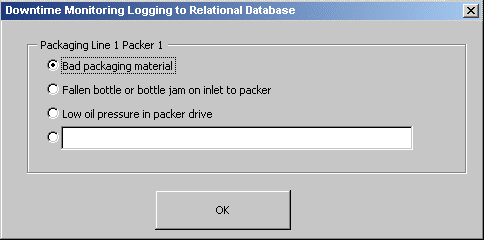
'Place the following code directly in the form you create and
'set a reference to Microsoft DAO 3.X Object Library.  See
'Visual Basic Editor Help for details on setting references.

Public sDataSource As String

'This is the initialize routine that is called from the Event
'object's OnTrue event. It creates a public instance of the
'string name of the data source for the form to use.
Public Sub InitializeDataSource(DataSource As String)
    sDataSource = DataSource

End Sub

'When the option button beside the text box is selected,
'enable and set focus to the text box.
Private Sub optDownTimeReasonFour_Click()

    txtDownTimeReasonFour.Enabled = True
    txtDownTimeReasonFour.SetFocus

End Sub

'When the form gets activated, set the first option to true
Private Sub UserForm_Activate()
    optDownTimeReasonOne.Value = True

End Sub

'When the user selects OK, store which reason they chose.
Private Sub cmdOK_Click()
    Dim DownTimeReason As String
    If optDownTimeReasonOne.Value = True Then
        DownTimeReason = optDownTimeReasonOne.Caption
    ElseIf optDownTimeReasonTwo.Value = True Then
        DownTimeReason = optDownTimeReasonTwo.Caption
    ElseIf optDownTimeReasonThree.Value = True Then
        DownTimeReason = optDownTimeReasonThree.Caption
    ElseIf optDownTimeReasonFour.Value = True Then
        If txtDownTimeReasonFour.Text <> "" Then
            DownTimeReason = txtDownTimeReasonFour.Text
        Else
            MsgBox "Please enter a reason for the _
            downtime event"
            txtDownTimeReasonFour.SetFocus
        End If
    End If

'Call the AddDownTimeEventData subroutine to add the
'downtime information to the database.
Call AddDownTImeEventData(DownTimeReason)
    Unload Me

End Sub

'This subroutine writes the data to the database and
'updates it.
'This database has not been provided and will need to be created
'for this subroutine to execute without error.

Public Sub AddDownTImeEventData(DownTimeReason As String)

    'Create an instance of DeltaV Operate.
    Dim wrkSpace As Workspace
    Set wrkSpace = CreateWorkspace("", "admin", "", dbUseJet)

    'Open the downtime database.
    Dim db As Database
    Set db = wrkSpace.OpenDatabase(System.PicturePath & _
    "\downtime.mdb")

    'Create a recordset.
    Dim rs As Recordset
    Set rs = db.OpenRecordset("Packaging", dbOpenDynaset)

    'Set up the time of downtime occurrence.
    Dim TimeDate As Date
    TimeDate = Now
    rs.AddNew
    rs.Fields(1) = TimeDate
    rs.Fields(2) = TimeDate
    rs.Fields(3) = sDataSource
    rs.Fields(4) = DownTimeReason
    rs.Fields(5) = Fix32.NODE1.downtimeperiod.f_cv
    rs.Update

End Sub