DeltaV OPC Data Access Server functional overview > Redundant DeltaV OPC Data Access Server > Setting up a pair of Application Stations for redundant DeltaV OPC Data Access Server

Create an Application Station

  1. On the ProfessionalPLUS workstation, create an Application Station in DeltaV Explorer by right-clicking Control Network under System ConfigurationPhysical Network, and then selecting NewApplication Station.
  2. On the General tab of the Properties dialog, specify a name for the Application Station.
    Figure: Naming the Application Station
    Important

    As a general rule, do not specify an Application Station name that ends with the characters _S. When the DeltaV system creates a pair of Application Stations for redundant DeltaV OPC Data Access Server, it appends these characters to whatever name you specify as the base name for the Application Station. Having a pair of Application Stations named nodename_S and nodename_S_S could result in misleading or undesirable results while working with redundant DeltaV OPC Data Access Server.

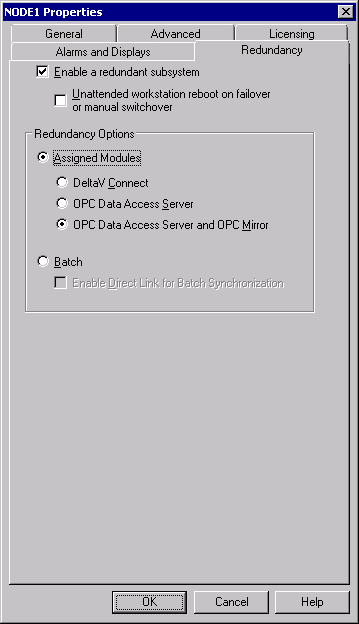
  3. On the Redundancy tab of the Properties dialog, check the Enable a redundant subsystem option, select the Assigned Modules option, and then select either the OPC Data Access Server option or the OPC Data Access Server and OPC Mirror option.
    Important

    Once a redundant subsystem is configured, you cannot concurrently enable any other subsystem (redundant or not) on that Application Station or its pair. If you select the OPC Data Access Server option rather than the OPC Data Access Server and OPC Mirror option, running OPC Mirror in a simplex configuration on the Application Station pair is not supported.

  4. You can optionally enable the Unattended Workstation Reboot on Failover or Manual Switchover option, if either of the Application Stations will be located in an unmanned facility, for example.
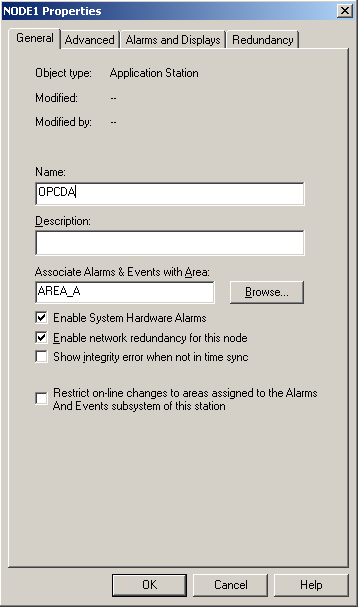
    Figure: Enabling redundant DeltaV OPC Data Access Server with OPC Mirror
  5. Click OK to close the Properties dialog for the Application Station.
  6. Export a workstation configuration file for the new Application Station. In DeltaV Explorer, select the new Application Station that you just created.
    Click FileExportWorkstation Configuration. Save the workstation configuration file either to removable media or to a network location that can be accessed from the Application Stations you will be configuring. You can use the default name for a workstation configuration file, DevData.cfg, or specify a different file name.