Before using the 1420 Wireless Gateway with the DeltaV system, ensure that it has been properly set up, configured, and connected to the DeltaV Control Network. Refer to the Quick Installation Guide that ships with the 1420 Wireless Gateway for more information.
The 1420 Wireless Gateway integrates signals from WirelessHART devices into the DeltaV system. Wireless I/O must be enabled as a DeltaV System Preference before it is available to the DeltaV system. To enable Wireless I/O, click , select the Enable Wireless I/O option, and then restart the DeltaV Database Server. After Wireless I/O is enabled, the Wireless I/O Network appears under the Control Network in DeltaV Explorer. The Wireless I/O Network is made up of the 1420 Wireless Gateway nodes, each node's associated I/O subsystem, cloud, and channels. The cloud contains the WirelessHART devices that are communicating with the 1420 Wireless Gateway using the same network ID. Wireless devices are assigned to channels under the cloud.
The DeltaV system supports up to 120 Wireless Gateway nodes. The following image shows the items under the Wireless I/O Network. Notice that this image also shows an Assigned Wireless I/O subsystem. This is because Wireless Gateway nodes are assigned to controllers.
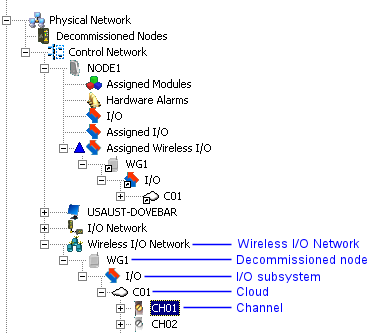
Each Wireless Gateway's cloud can support up to 99 WirelessHART Analog Input channels. You can choose to show all channels or, to minimize the space required to display all 99 channels in the DeltaV Explorer hierarchy, only show enabled channels. By default only enabled channels are shown. The commands to show all channels or only enabled channels are available from the cloud's context menu. In the image shown above, only enabled channels are shown. Wireless Gateway channels are enabled like other channels in the DeltaV system. To enable a Wireless Gateway channel, open the channel's Properties dialog, and then select the Enabled option.